How to configure Schedules
Set schedules to automatically trigger presets for sunrise, sunset or any calendar day
Step 1 : Configure time zone settings
Step 2: Schedule presets to run on desired day and time
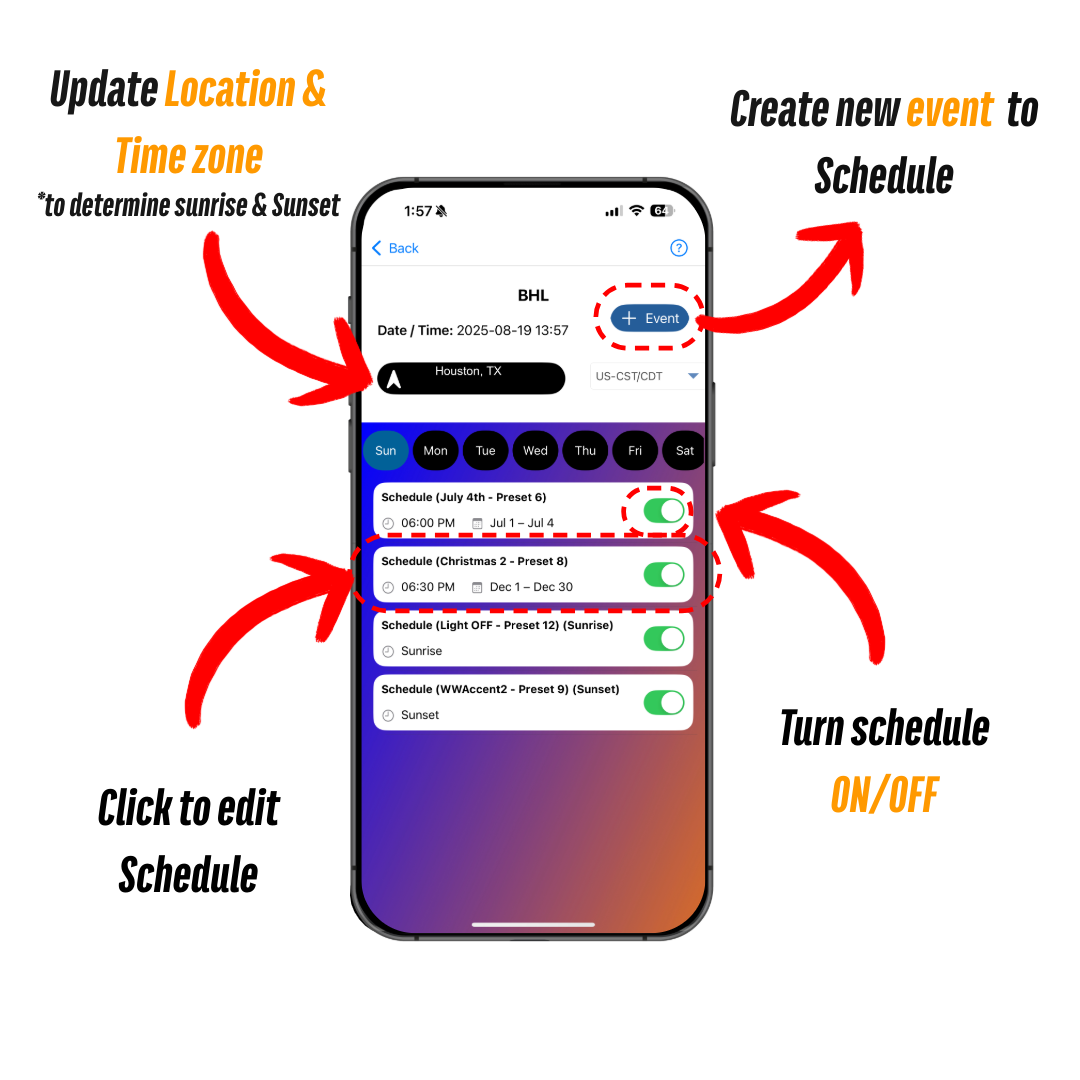
Configure via Bright home APP
Location must be set in order to use the sunrise and sunset features!
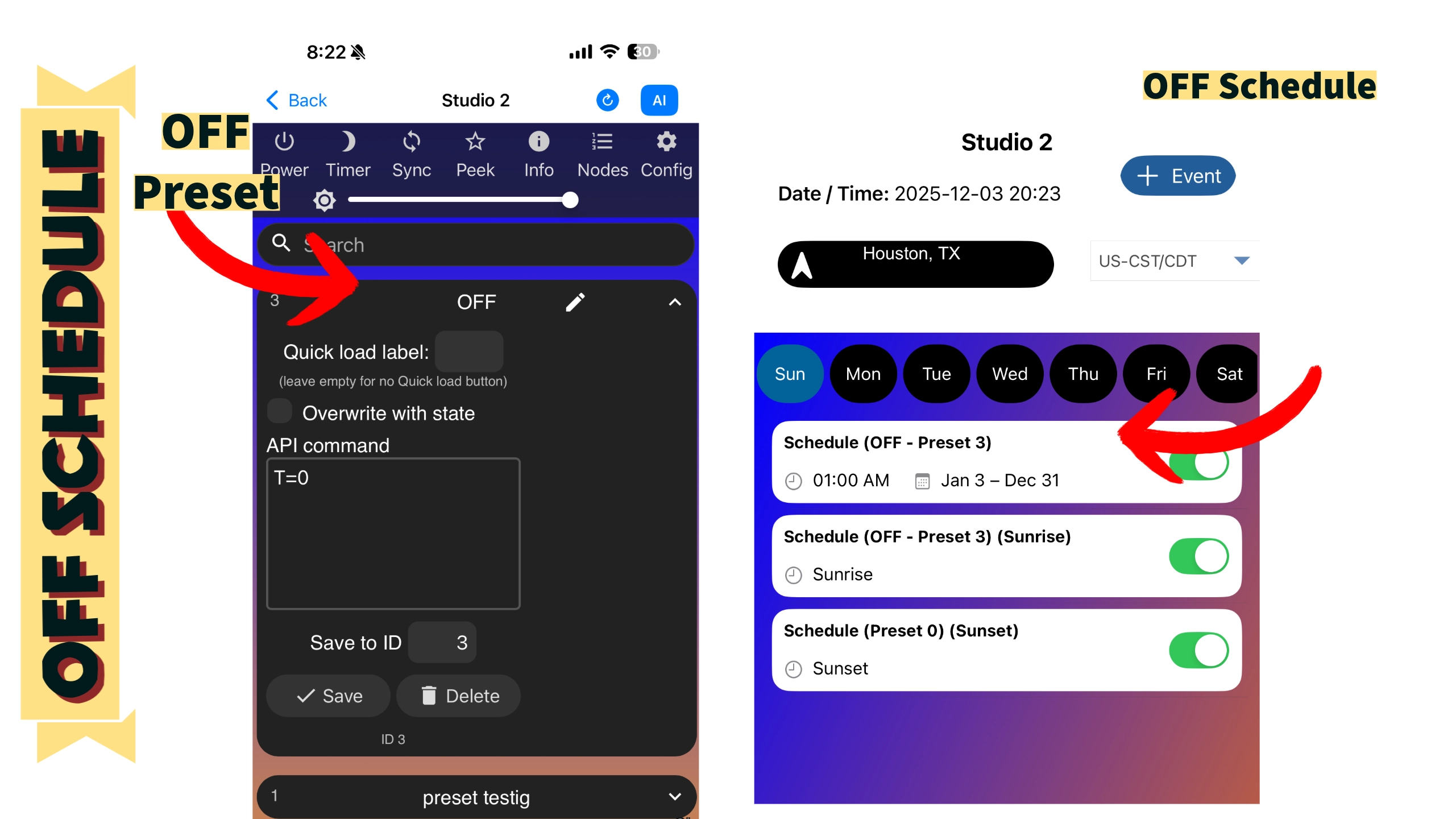
SCHEDULE AN “OFF” PRESET TO TURN OFF DEVICE
To turn off the device on a schedule, you must schedule an “off” preset to trigger the device to turn off. If you do not have one, turn off the device and save the “OFF” state as a preset. Name it “OFF” or use the API command “T=0,” as shown below.
Configure via WLED backend
Location must be set in order to use the sunrise and sunset features!
1. Time Zone & Location
Location must be set in order to use the sunrise and sunset features! Calculated times are displayed when set correctly

2. Schedules

Troubleshooting
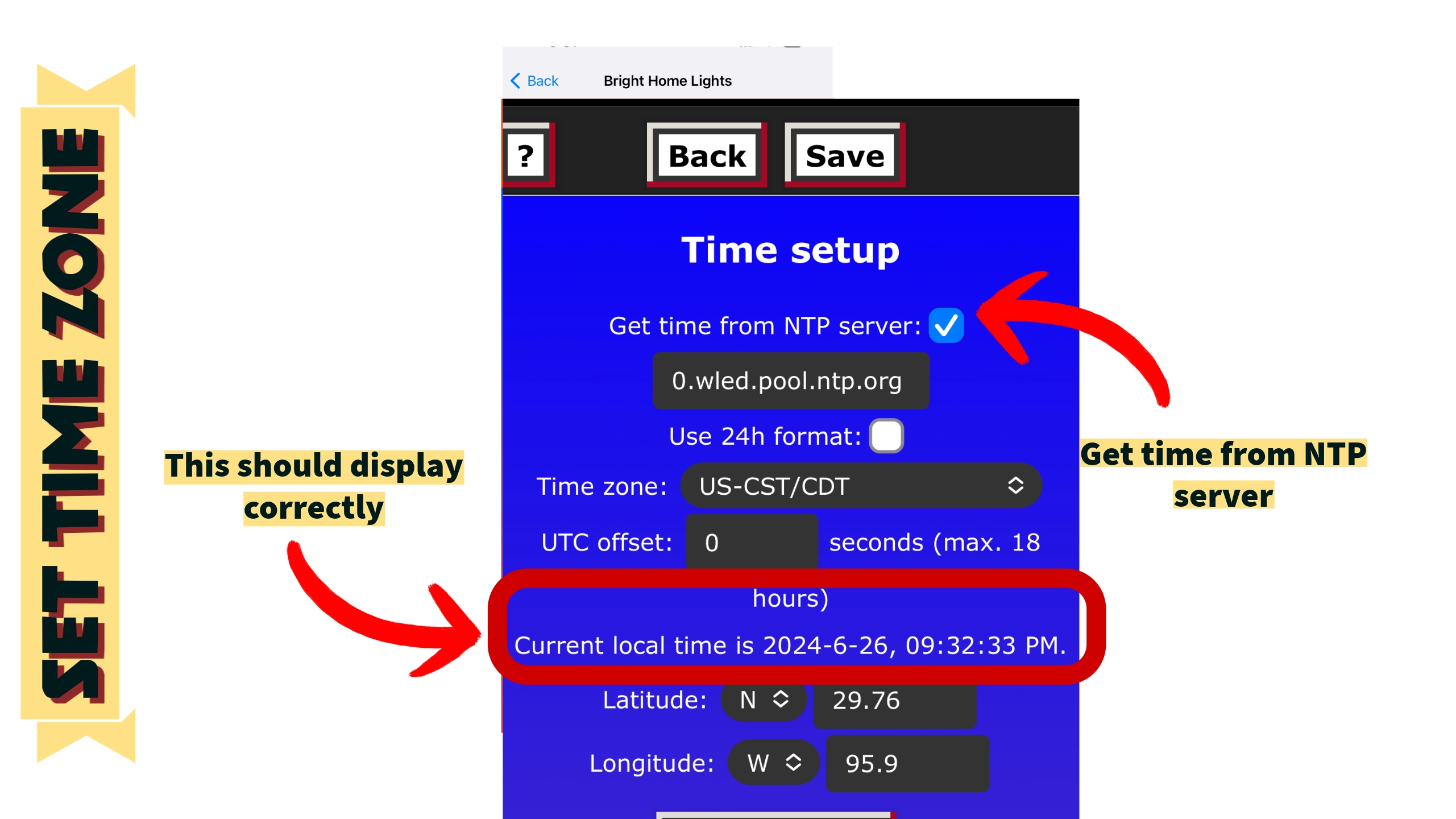
Most common issue with schedules is the time not set correctly. To resolve/validate this, navigate to this menu option.
Check the backend to ensure the time is set correctly. Follow the prompts to access this menu option.
The correct date and time should be displayed as shown in the image. If not, reset the location and perform a device reboot.
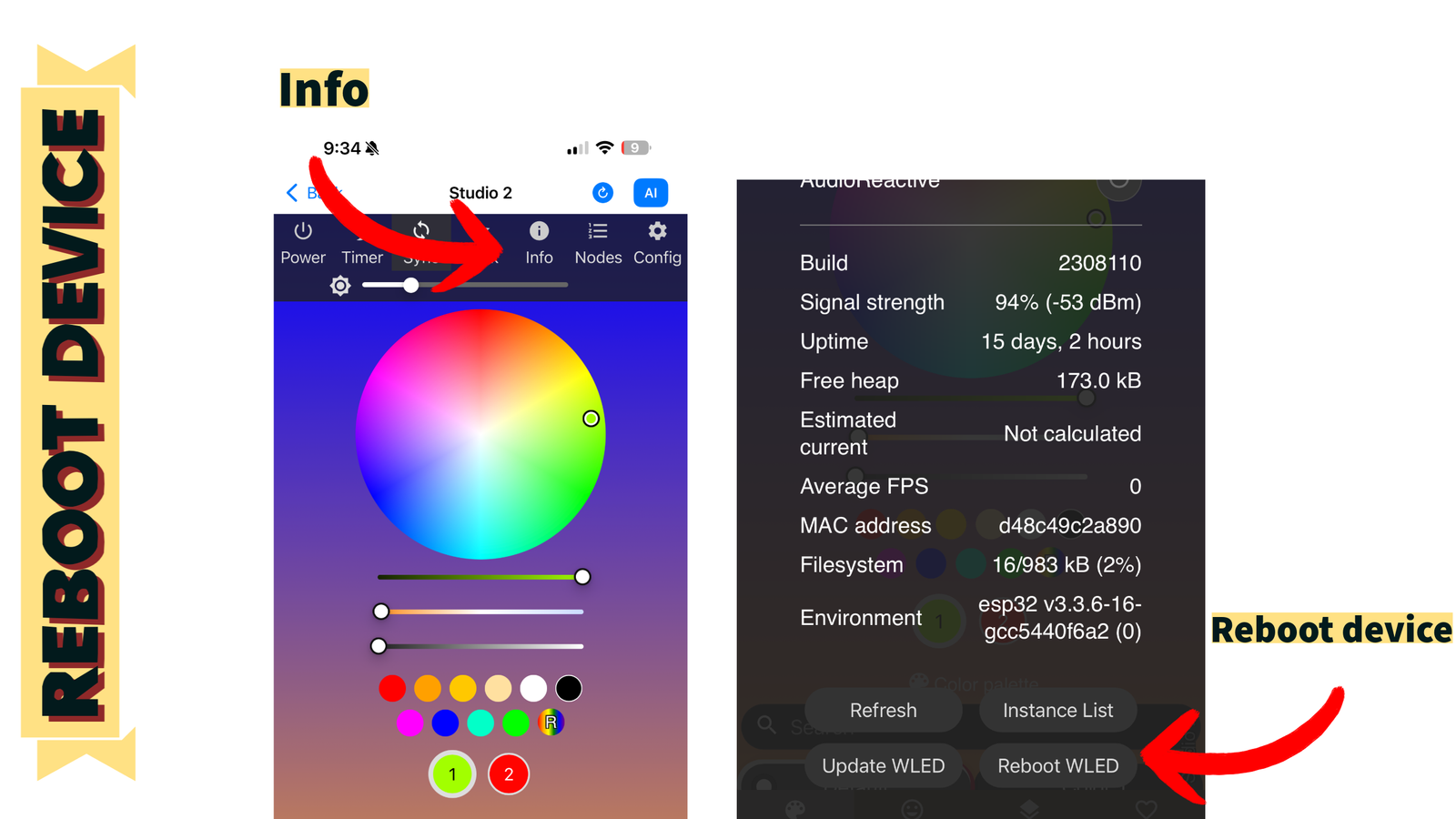
Reboot Device
Setting the time might sometimes require a device reboot. Follow the steps in this image to reboot the device.