Welcome to
Bright Home Lights
Your complete guide to controlling WLED smart lights. Learn every feature, from basic controls to AI-powered color themes.
Devices
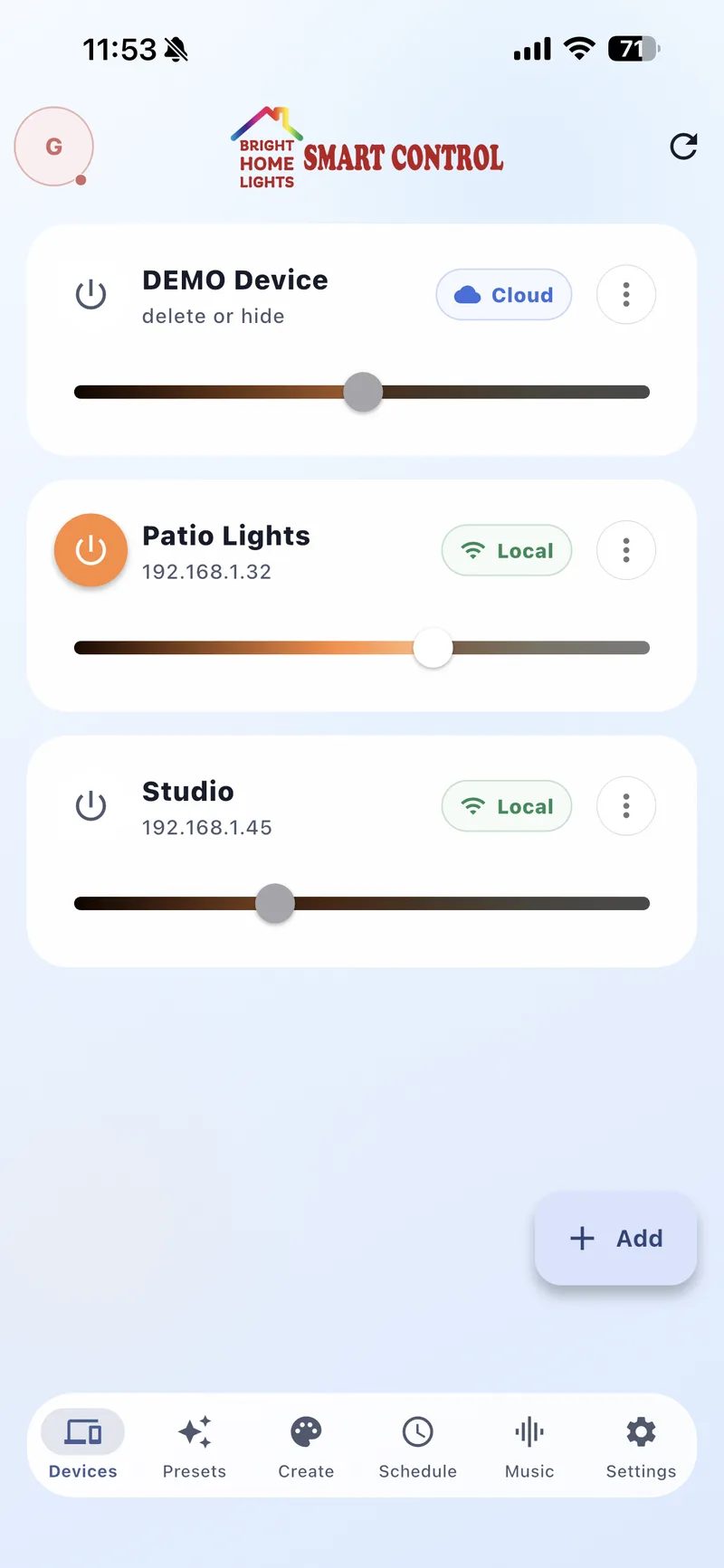
Manage all your WLED lights from one place. Add devices, control brightness, and monitor connection status.
1 Device Cards
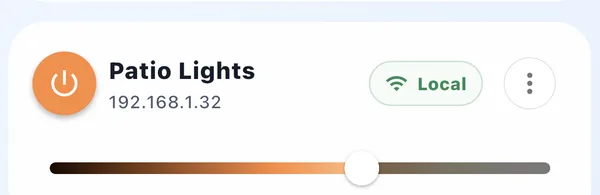
Each device shows its name, IP address, and a brightness slider. Tap the power icon to toggle on/off instantly.
2 Connection Status
Local means the device is on your WiFi network for instant control. Cloud means it’s accessible remotely from anywhere.

3 Brightness Slider
Drag the slider to adjust brightness in real-time. The color gradient shows the current color output of your lights.

4 Add Device
Tap + Add to discover WLED devices on your network or add one manually by IP address.
5 Device Menu
Tap the three-dot menu for options like Edit, Share, Diagnostics, Backup, and more.
6 Edit & Configure
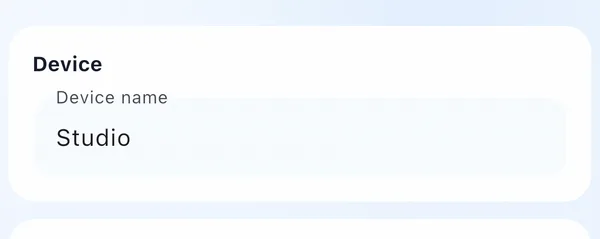
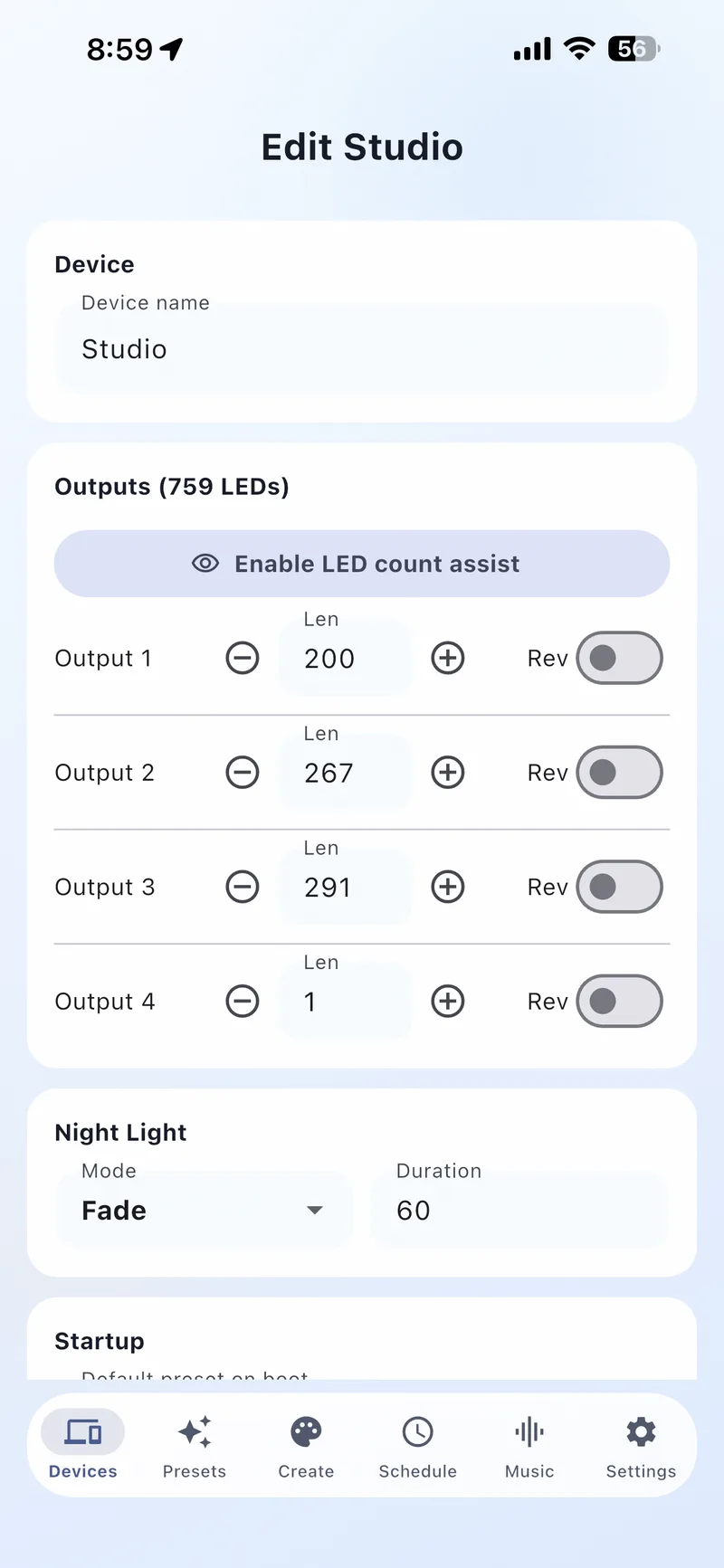
From the device menu, tap Edit to rename your device, change its IP address, or adjust connection settings.
7 Diagnostics
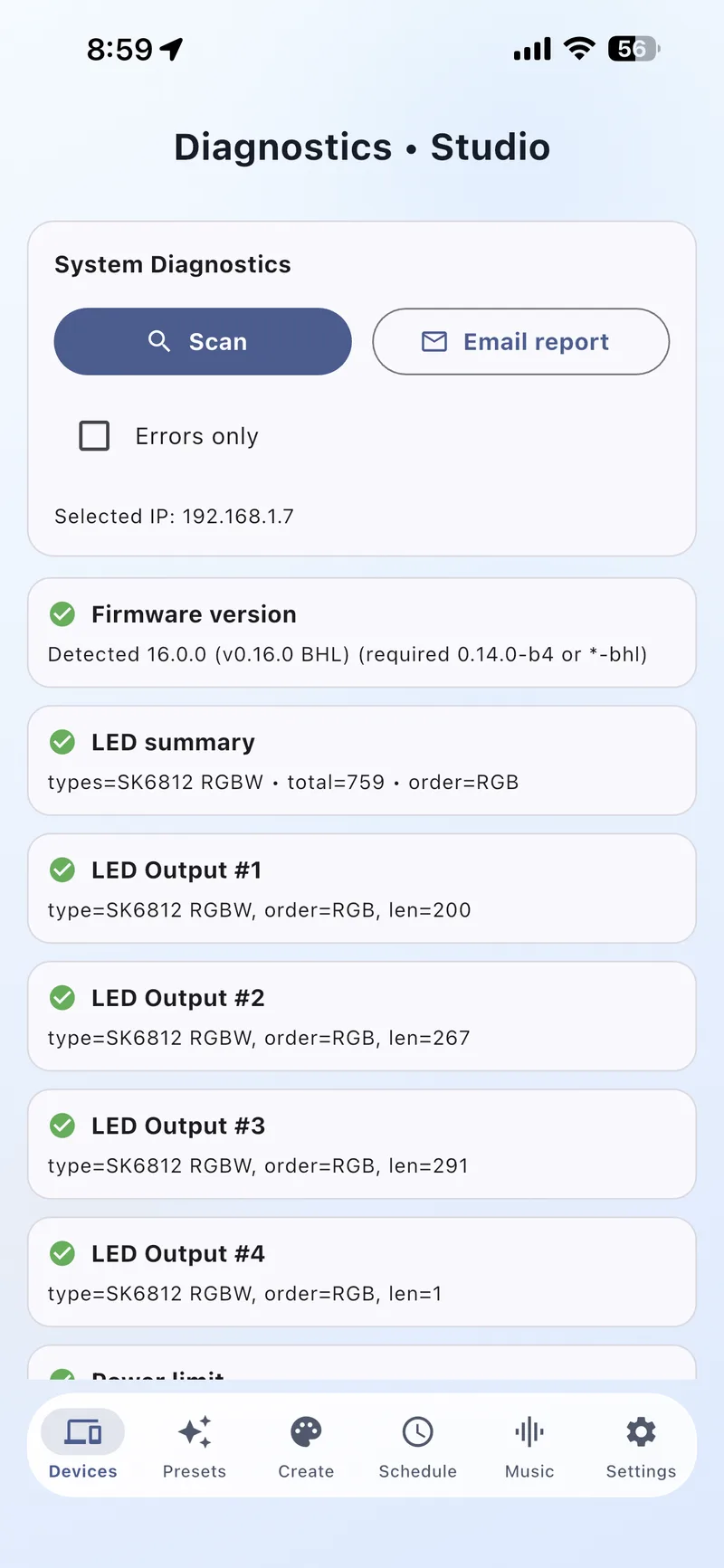
Run a diagnostic check to validate your device’s presets and schedules. Useful for troubleshooting when lights don’t behave as expected.
Presets
Browse hundreds of ready-made lighting presets organized by category. One tap to apply any look.
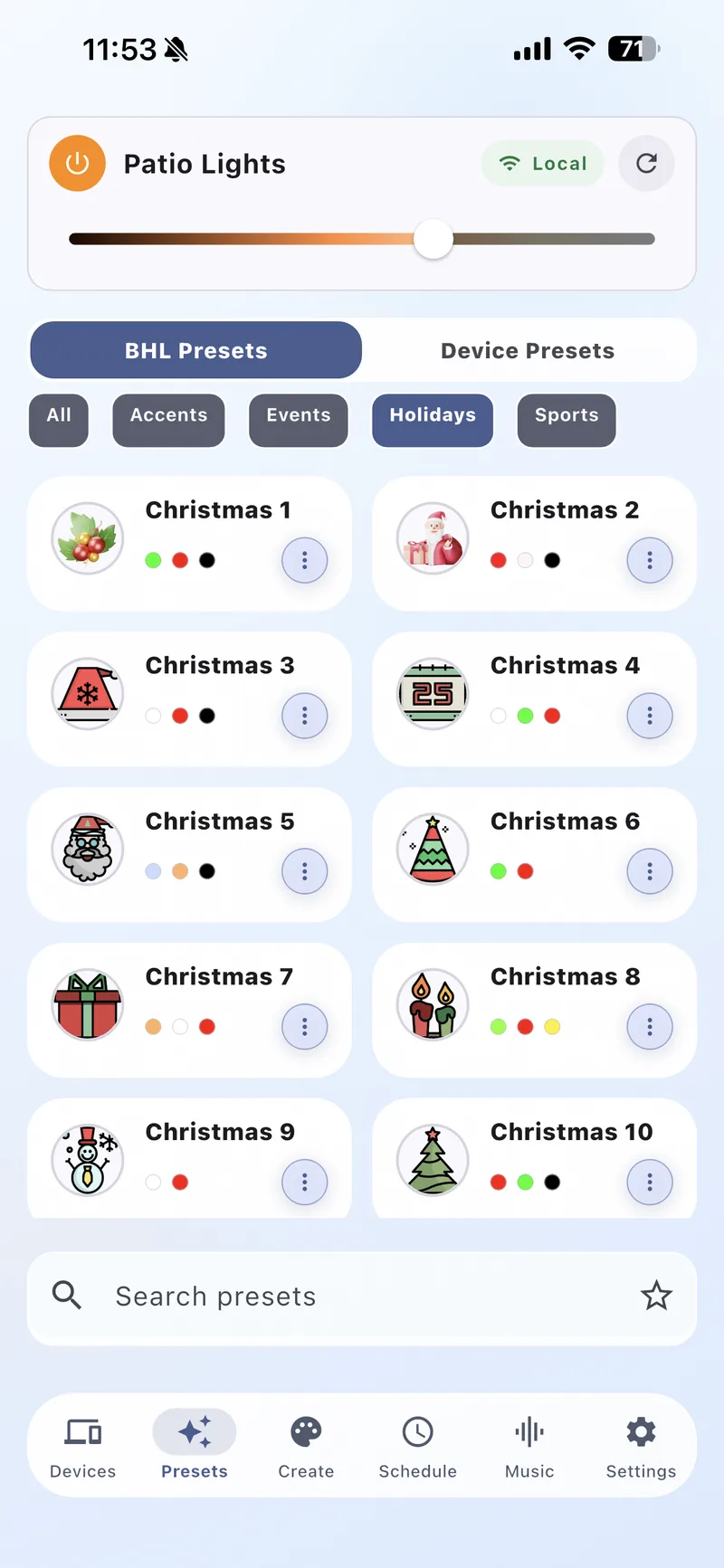
1 BHL Presets vs Device Presets
BHL Presets are curated themes included with the app. Device Presets are saved directly on your WLED controller.
2 Category Filters
Filter presets by category: Accents, Events, Holidays, Sports and more. Quickly find the perfect look for any occasion.

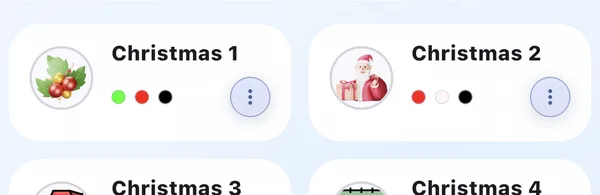
3 Preset Cards
Each preset shows a preview thumbnail and color dots. Tap to instantly apply it to your selected device.
4 Search & Favorites
Use the search bar to find presets by name. Star your favorites for quick access later.
Create
Design your own custom lighting looks with the color wheel, effects engine, segments, and LED grid.
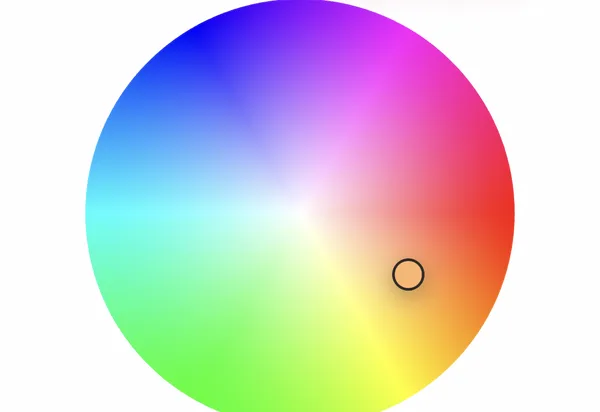
1 Color Wheel
Drag the picker across the wheel to choose any color. The selected color is sent to your lights in real-time.
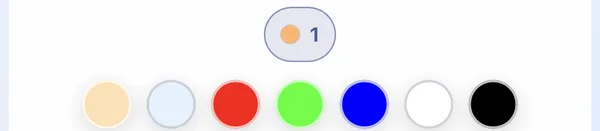
2 Color Palette Slots
Up to 7 color slots let you build multi-color themes. Tap a slot to select it, then pick a color from the wheel.
3 White Channel
Adjust the white LED channel independently. Perfect for warm or cool white accent lighting.

4 AI Theme
Tap the AI Theme button to generate color palettes from a text description. Just describe the mood you want!

5 Save & Load
Save your custom creations as DIY Presets. Load them anytime across any device.
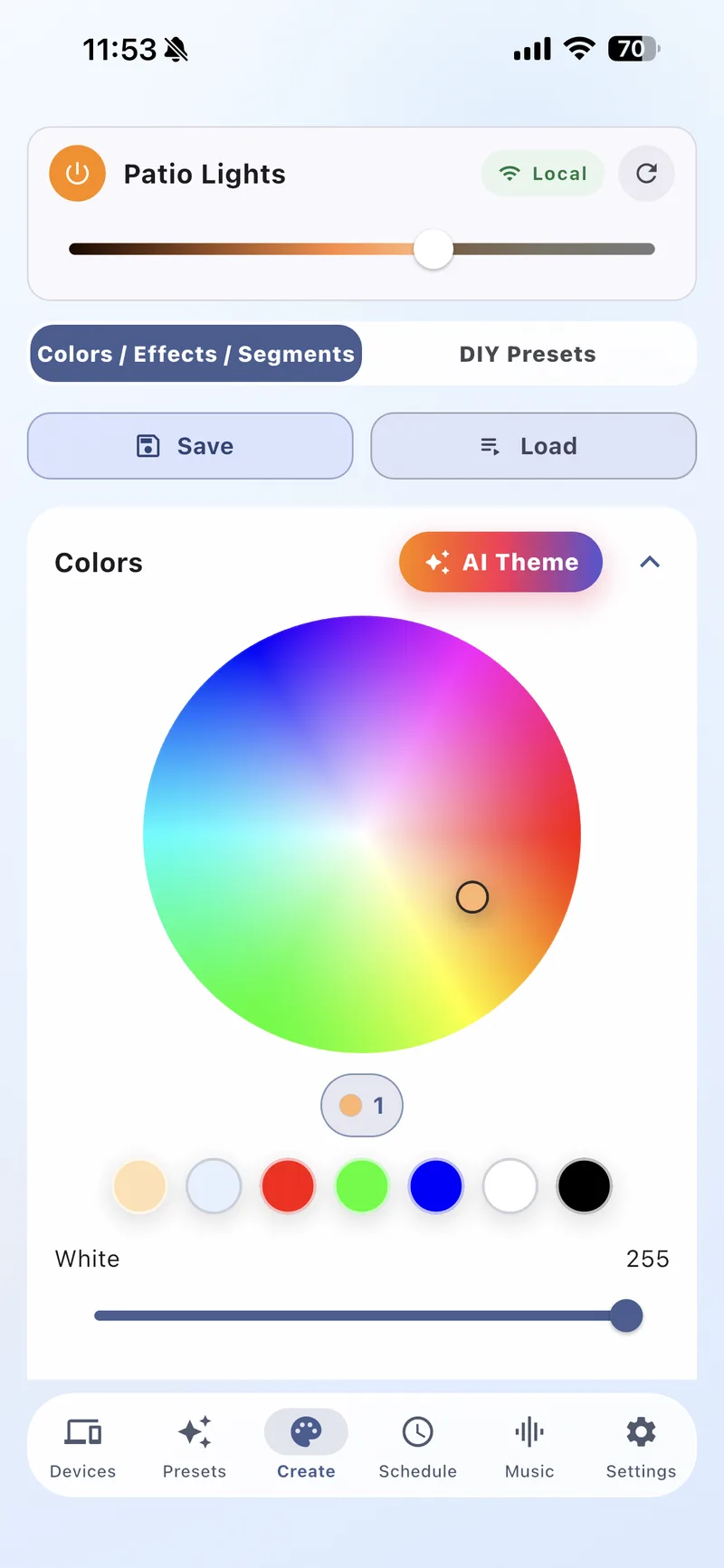
1 Colors Section
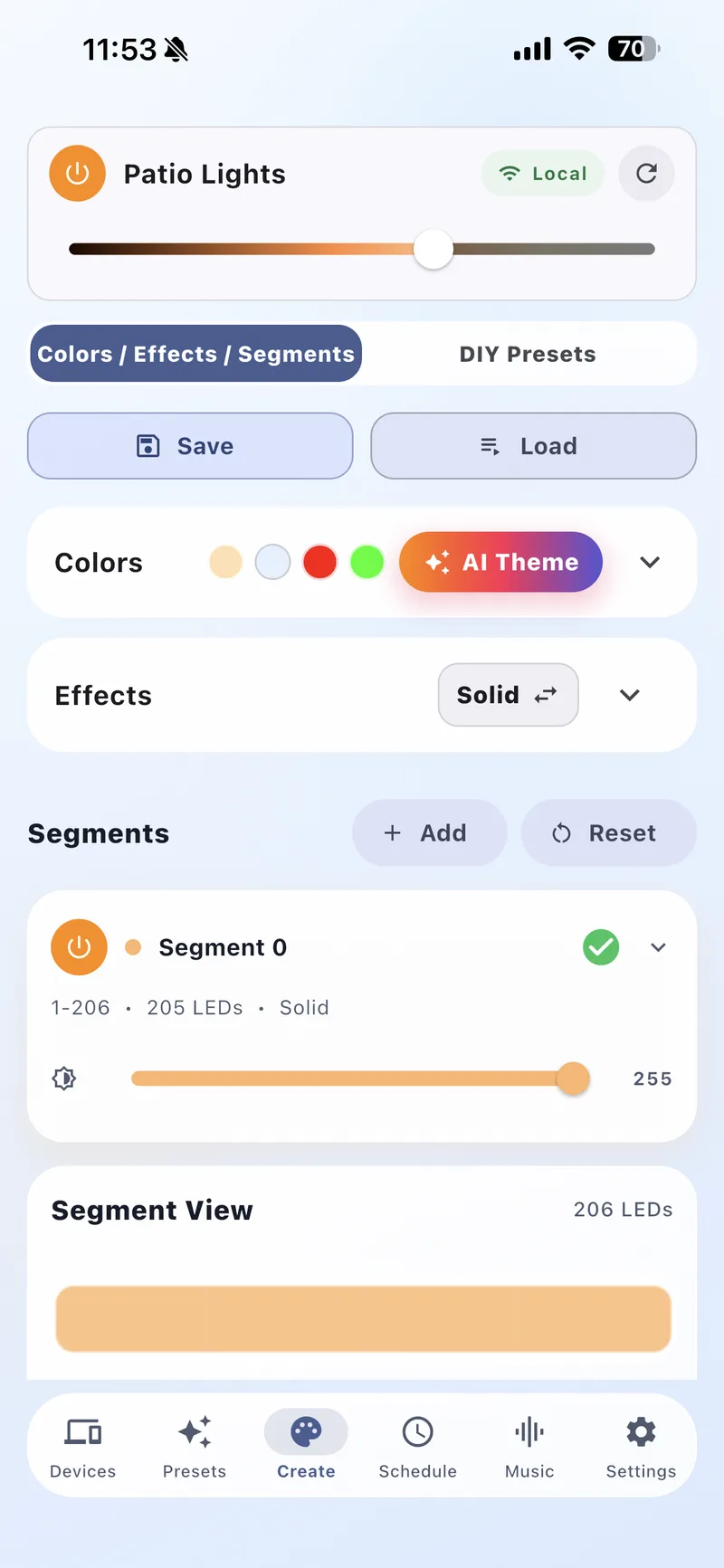
Expand to access the color wheel, or collapse to see your selected colors at a glance. The AI Theme button generates palettes instantly.
2 Effects
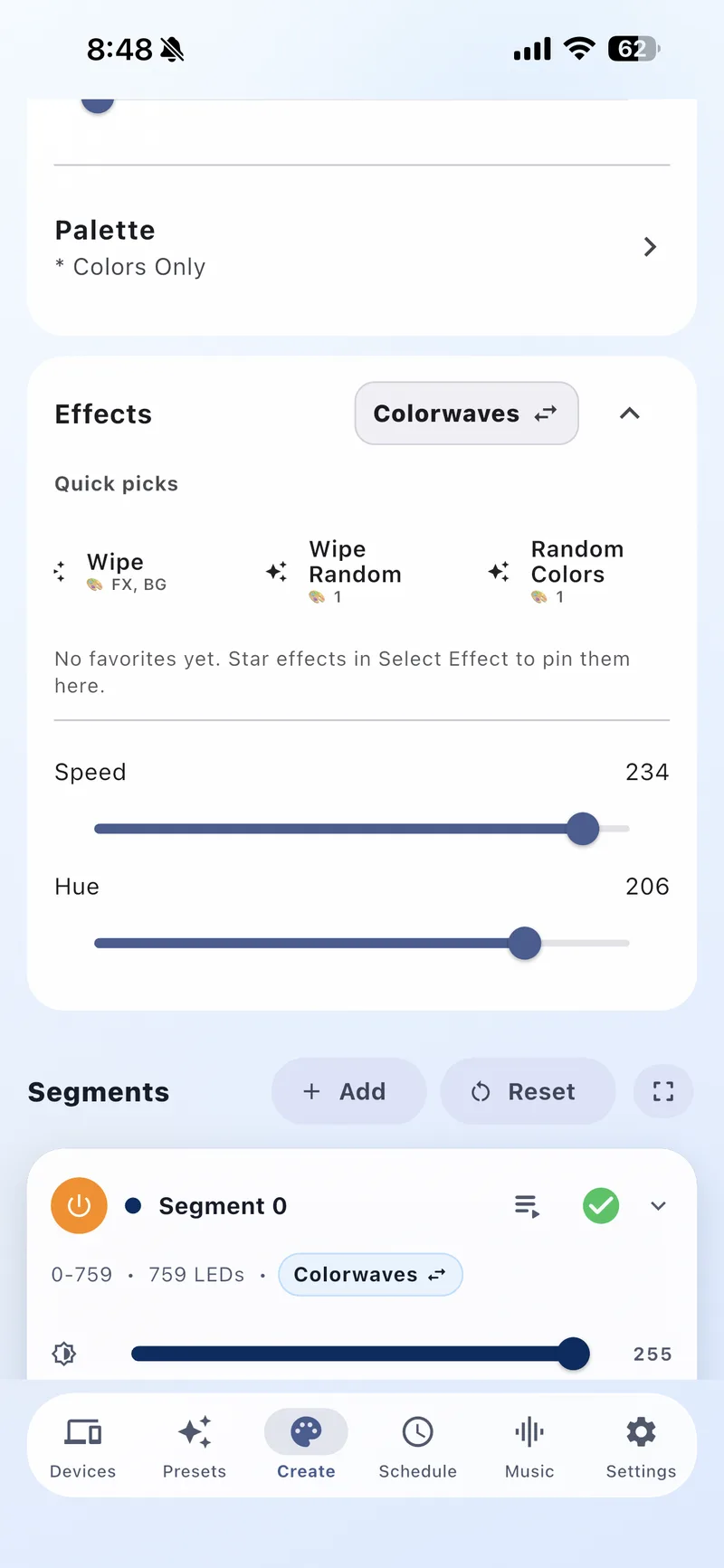
Choose from 100+ animation effects: Solid, Rainbow, Chase, Twinkle, Fire, and many more. Each effect animates your selected colors. Search or filter by favorites.

3 Speed, Intensity & Custom
Fine-tune each effect with Speed and Intensity sliders. Some effects offer up to 3 custom control sliders (C1, C2, C3) for extra parameters.
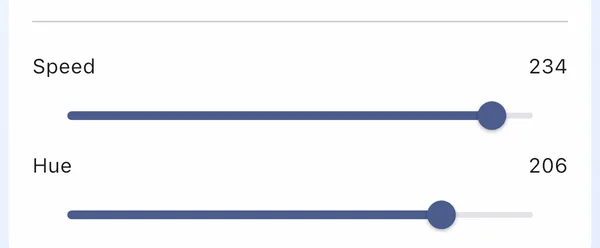
4 Palette Selector
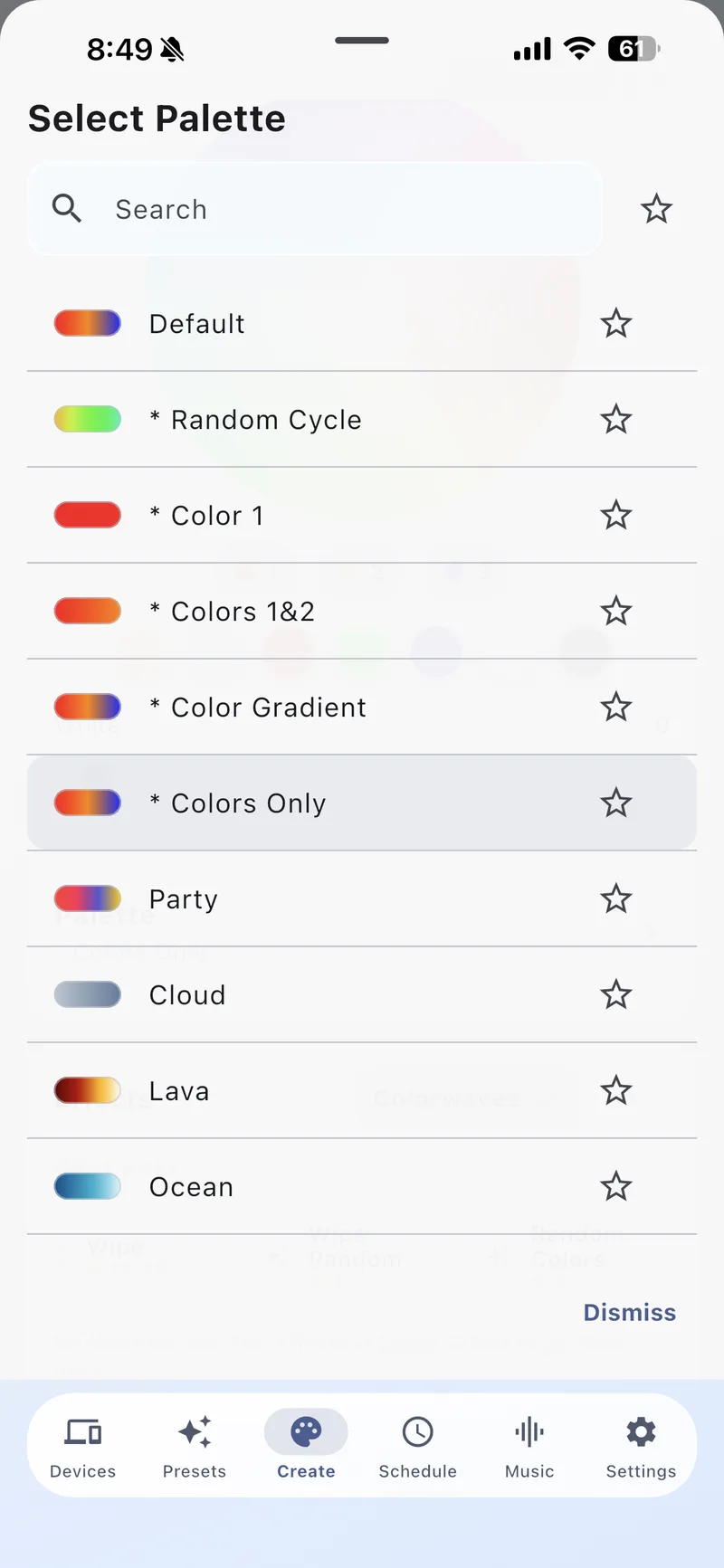
The active palette is shown at the top of the effects panel. Tap it to browse 50+ built-in palettes like Rainbow, Lava, Ocean, Forest, and more.

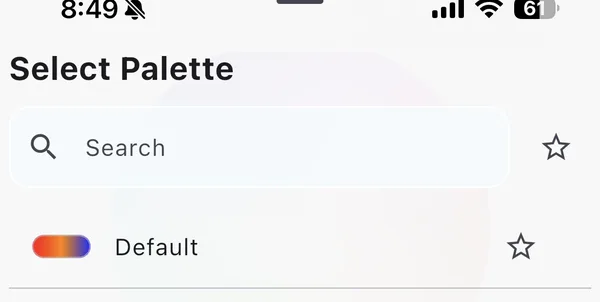
5 Segments
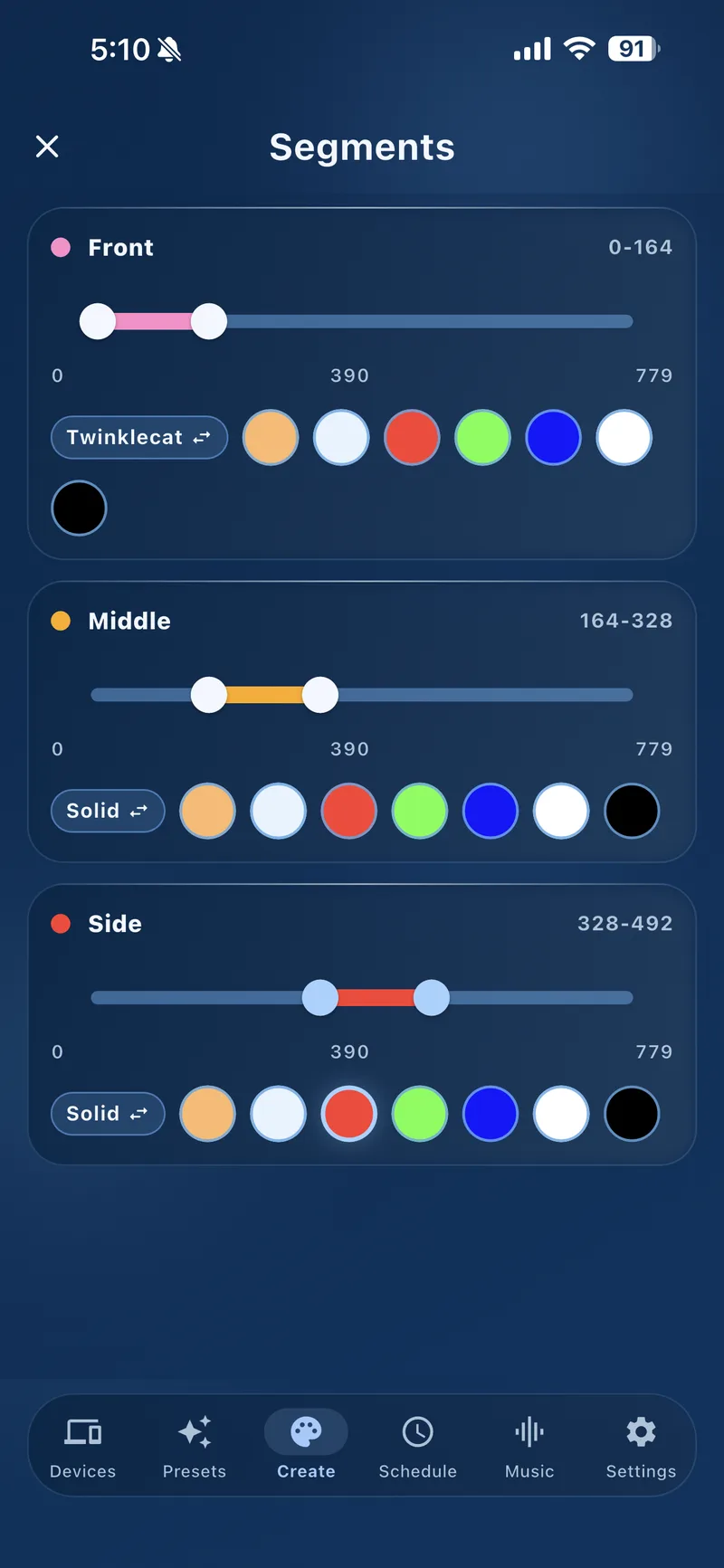
Split your LED strip into independent zones. Each segment can have its own color, effect, and brightness. Use + Add to create segments and Reset to clear them.

6 Segment Controls
Each segment shows its LED range (e.g., 1-206), count, effect, and has an individual brightness slider and power toggle. Options include Reverse, Mirror, and Freeze.
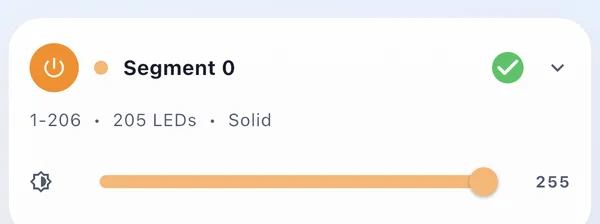
7 Segment View
A visual preview at the bottom shows how your LED strip looks with the current segment configuration and colors.
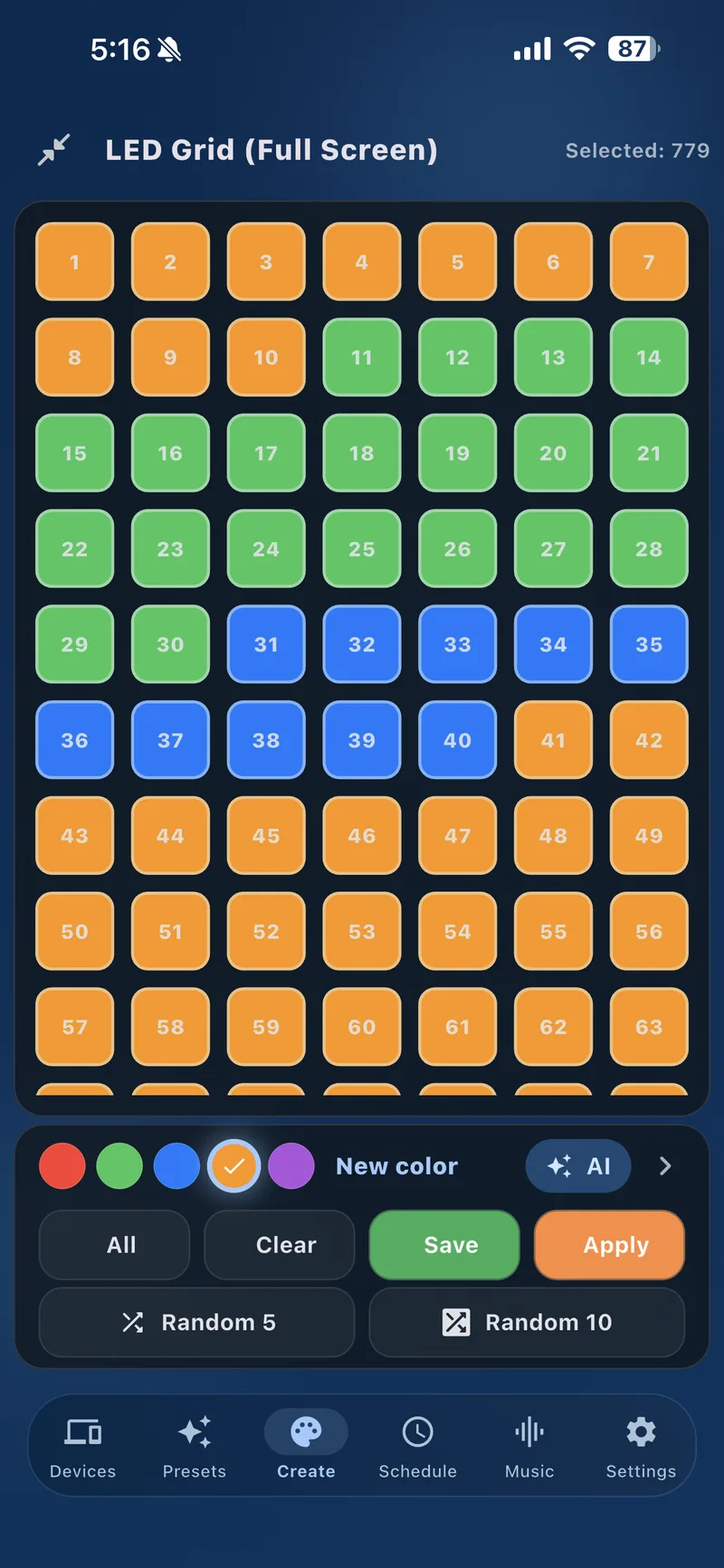
1 LED Grid View
See every individual LED in a numbered grid layout. This full-screen view is perfect for LED matrix and panel setups.
2 Select & Color
Tap individual LEDs or drag to select groups. Then pick a color from the palette to paint them. “Selected” count shows how many LEDs are active.
3 Quick Actions
All selects every LED. Clear deselects. Save stores your layout. Apply sends it to the device.
4 Random Patterns
Use Random 5 or Random 10 to quickly generate colorful random patterns across your grid.
5 AI Assist
Tap the AI button to generate grid patterns from a text description using AI.
AI Features
Let AI generate the perfect color themes from text descriptions. Just type what you want and let the AI do the rest.
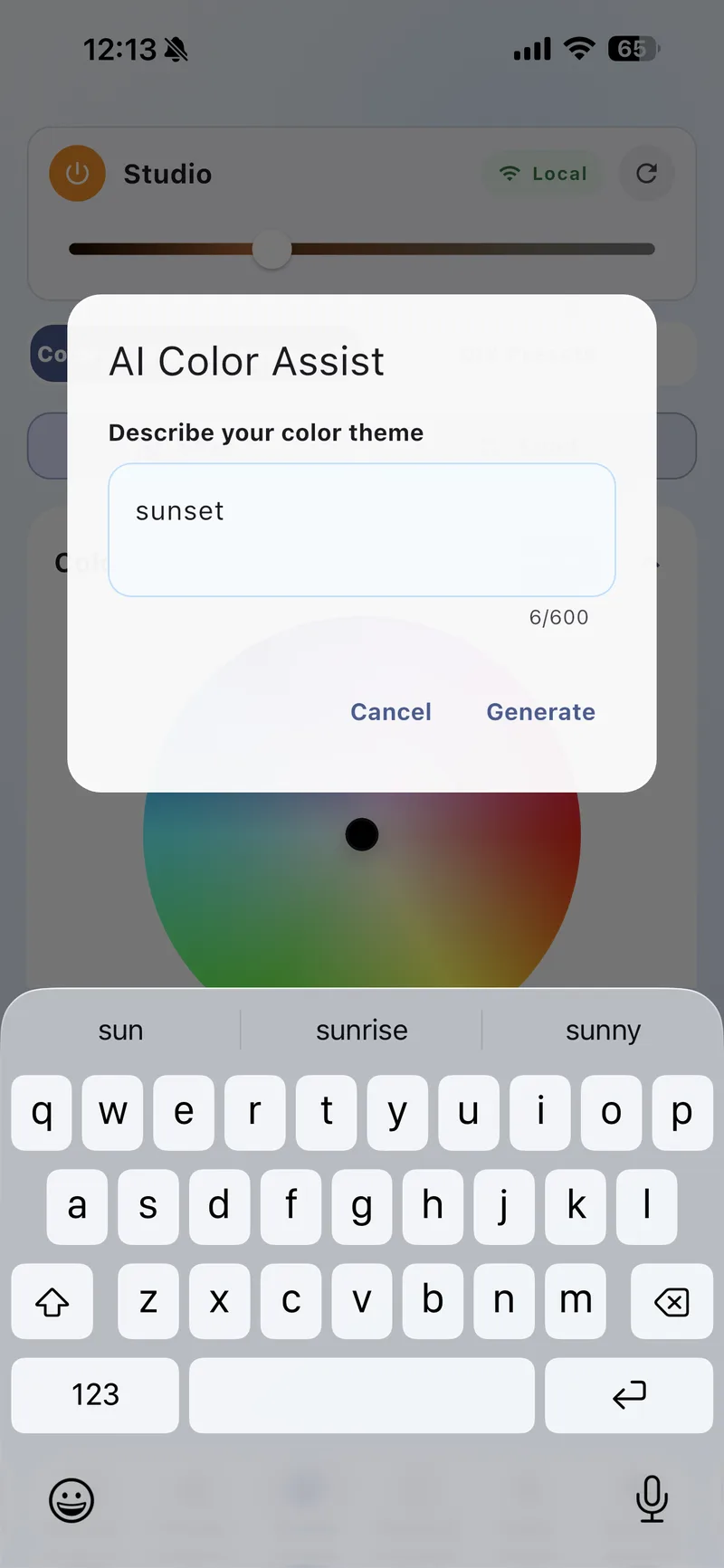
1 AI Color Assist
Describe any color theme in plain words, like “sunset”, “ocean breeze”, or “cozy autumn”. The AI generates a matching color palette for your lights.
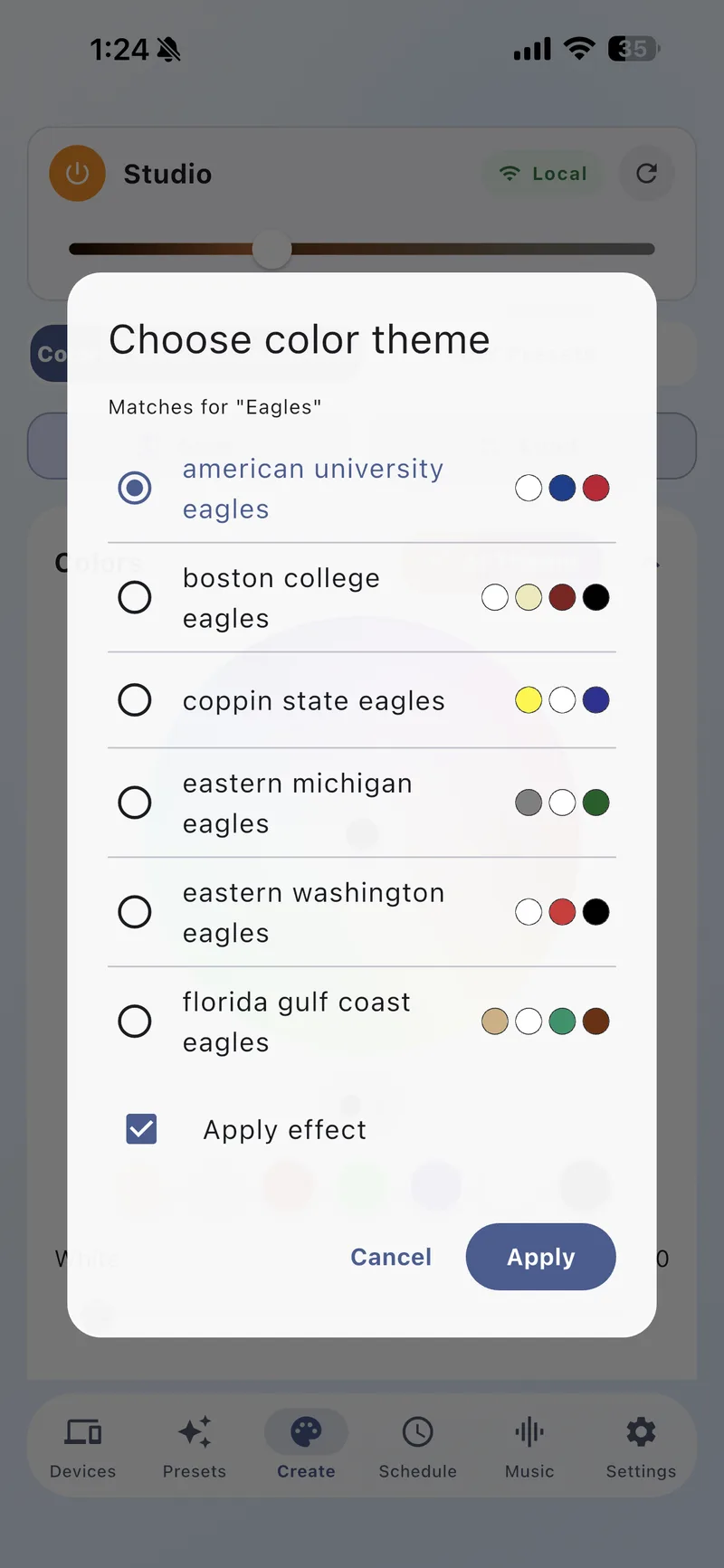
2 AI Theme for Sports
Type a team name and the AI finds matching team colors from hundreds of sports teams. Choose your exact team from the results, and optionally apply a matching animation effect.
3 Smart Matching
The AI recognizes schools, pro teams, and sports organizations. It shows color previews so you can pick the perfect match.
Schedules
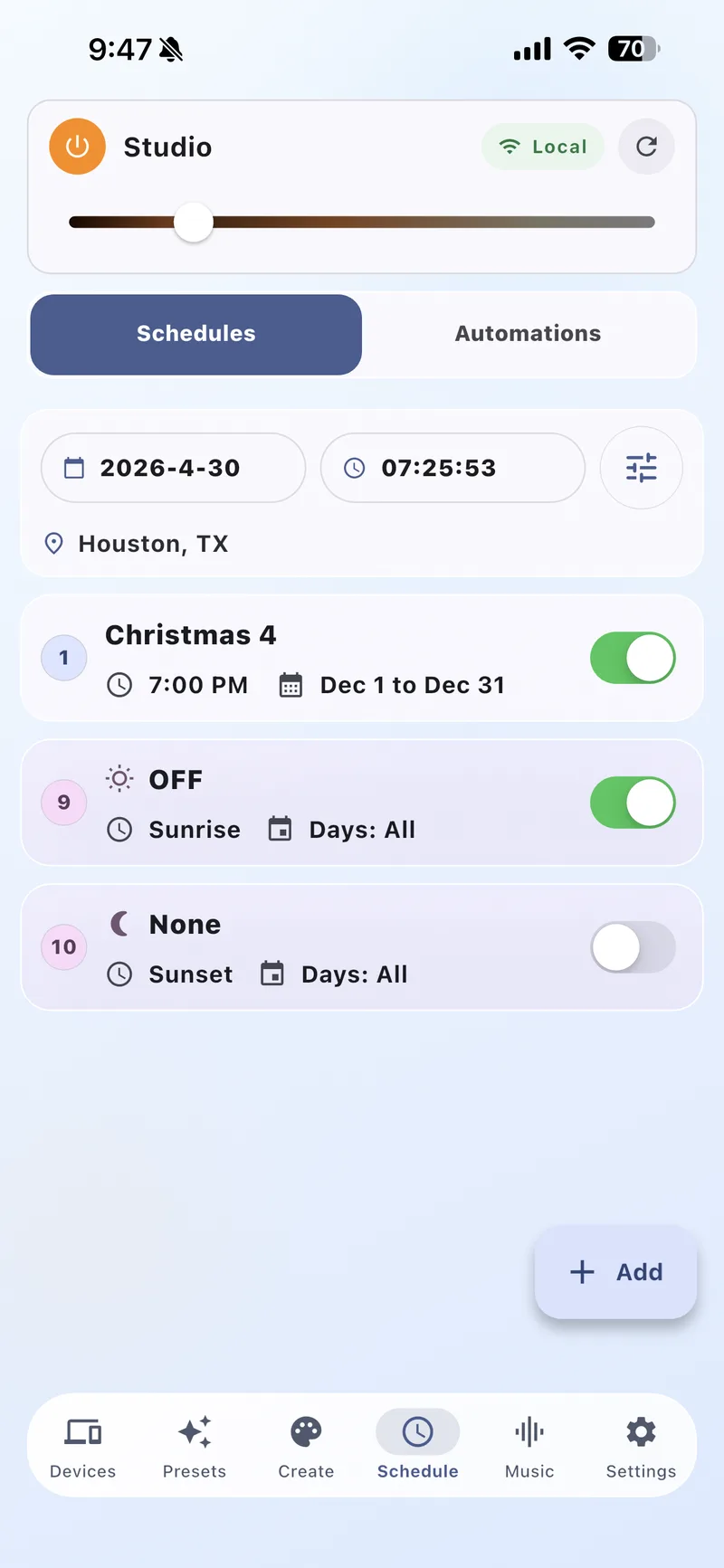
Automate your lights with time-based schedules. Set them to turn on at sunset, off at sunrise, or at any specific time.
1 Schedules & Automations
Switch between Schedules (time-based) and Automations (event-based) tabs to manage different types of rules.

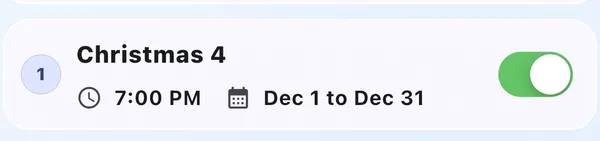
2 Schedule Entries
Each schedule shows the preset name, trigger time, and active date range. The numbered badge shows execution priority.
3 Sunrise & Sunset
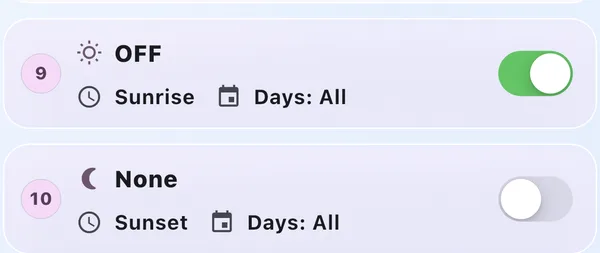
Use the sun icons to set schedules based on your local sunrise and sunset times. The app uses your location to calculate exact times.
4 Enable/Disable
Toggle individual schedules on or off with the green switch without deleting them.
5 Date Ranges
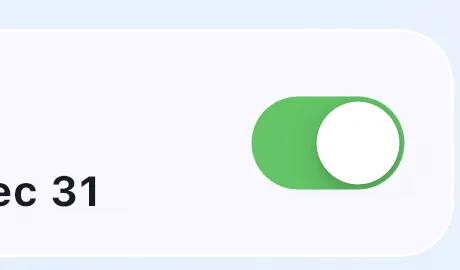
Set schedules to run only during specific date ranges, like “Dec 1 to Dec 31” for holiday lights.
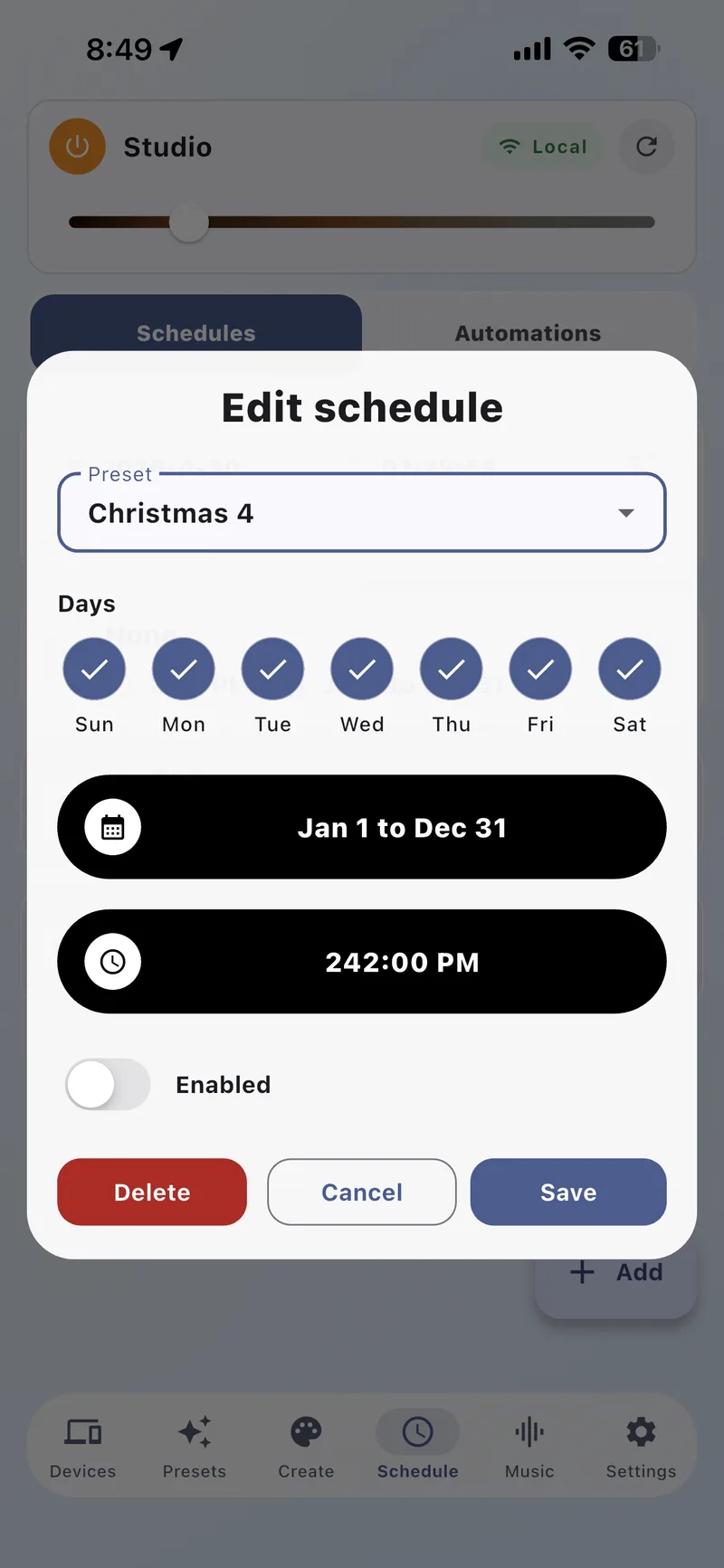
6 Schedule Editor
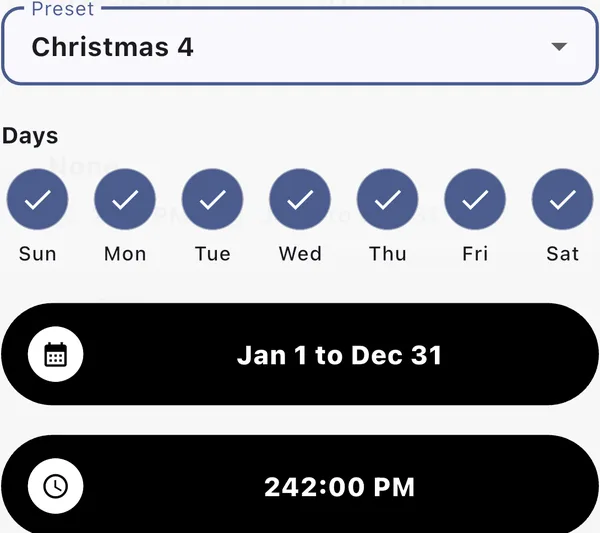
Tap any schedule to open the editor. Set the time (clock picker or sunrise/sunset), choose a preset to apply, set repeat options (once, daily, or specific days of the week), and define a date range.
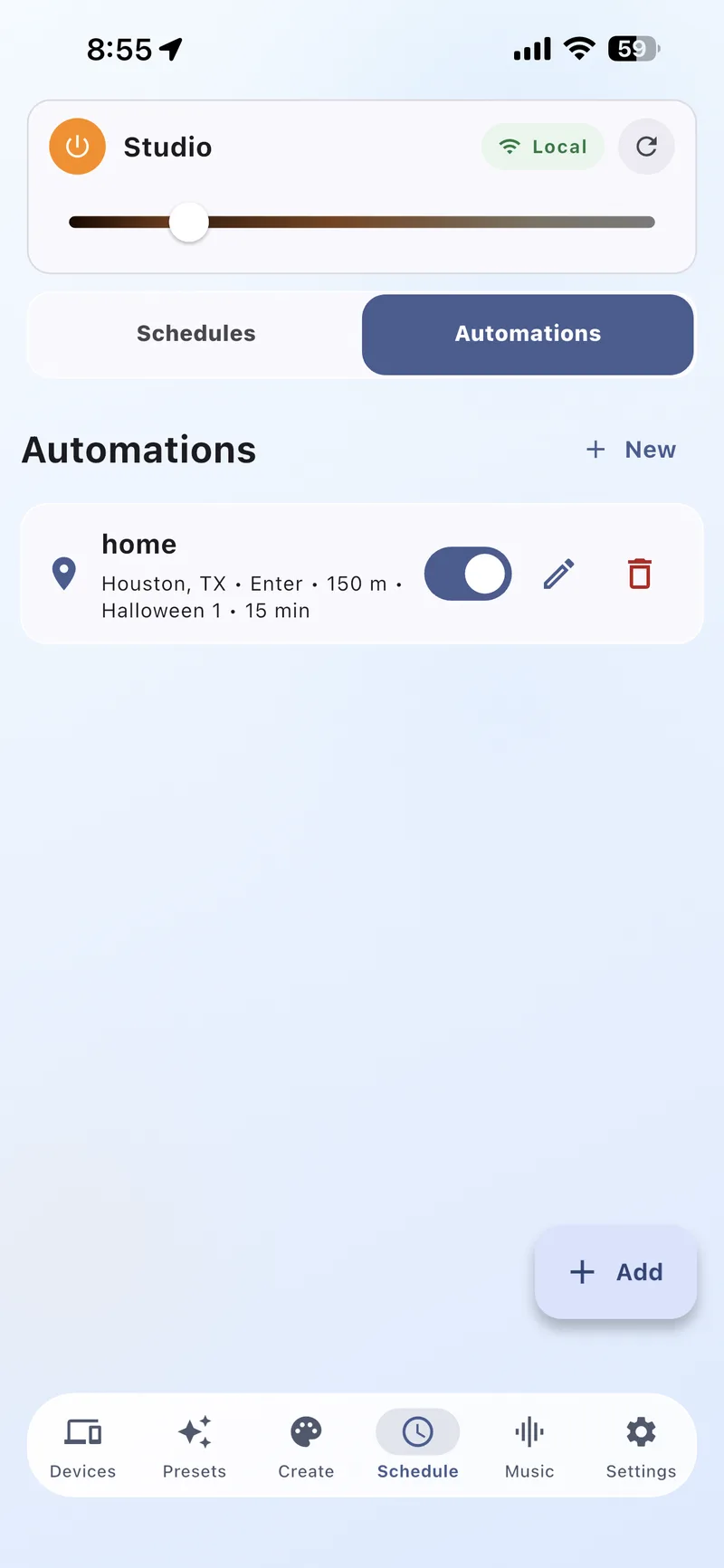
7 Automations
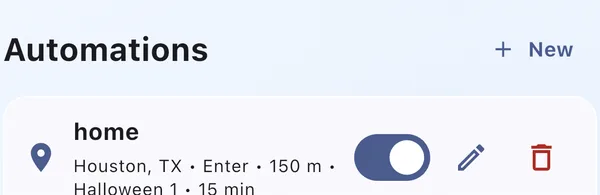
Switch to the Automations tab for location-based triggers. Create rules like “When I arrive home, turn on Patio Lights.” Uses geofencing to detect when you enter or leave an area.
Music Sync
Make your lights dance to music with real-time audio visualization. Choose visualization modes and customize colors.
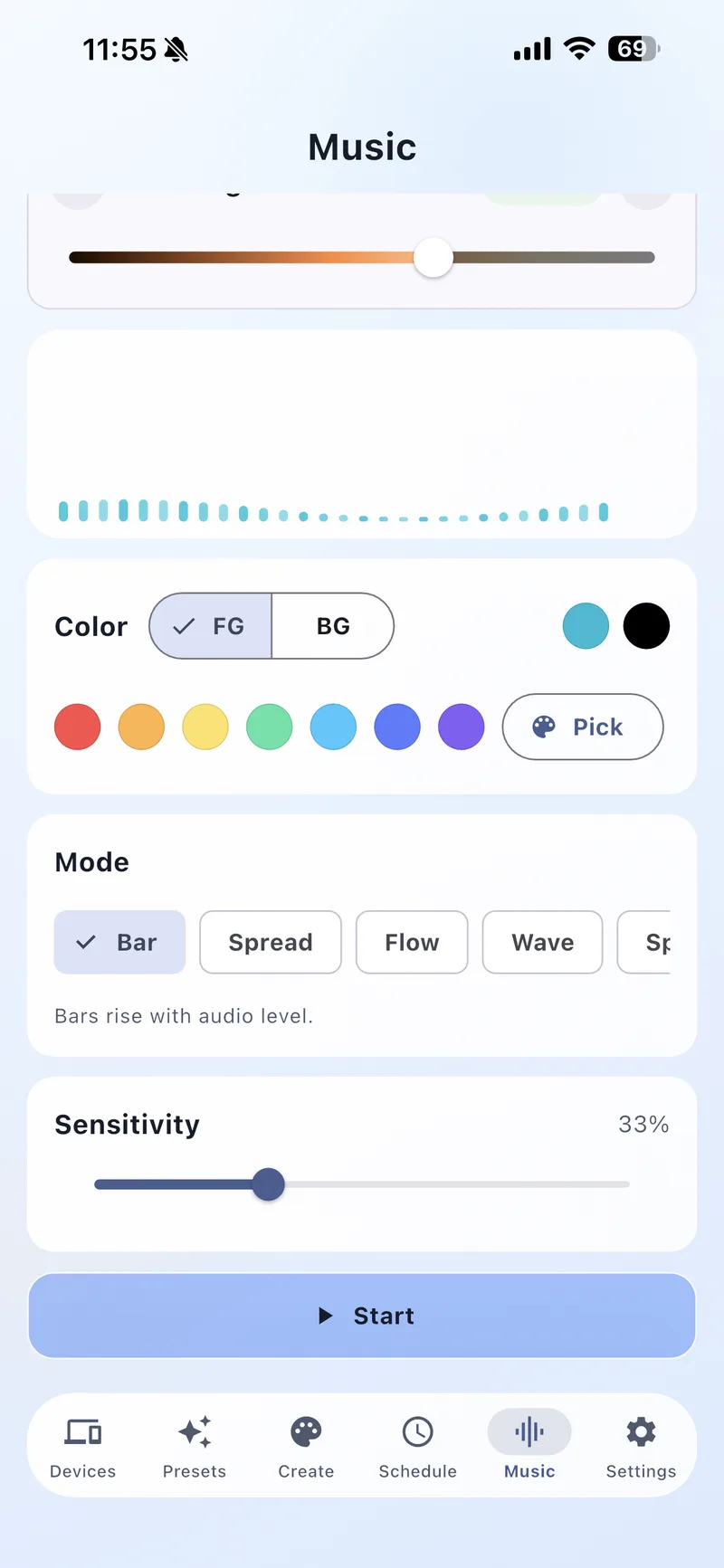
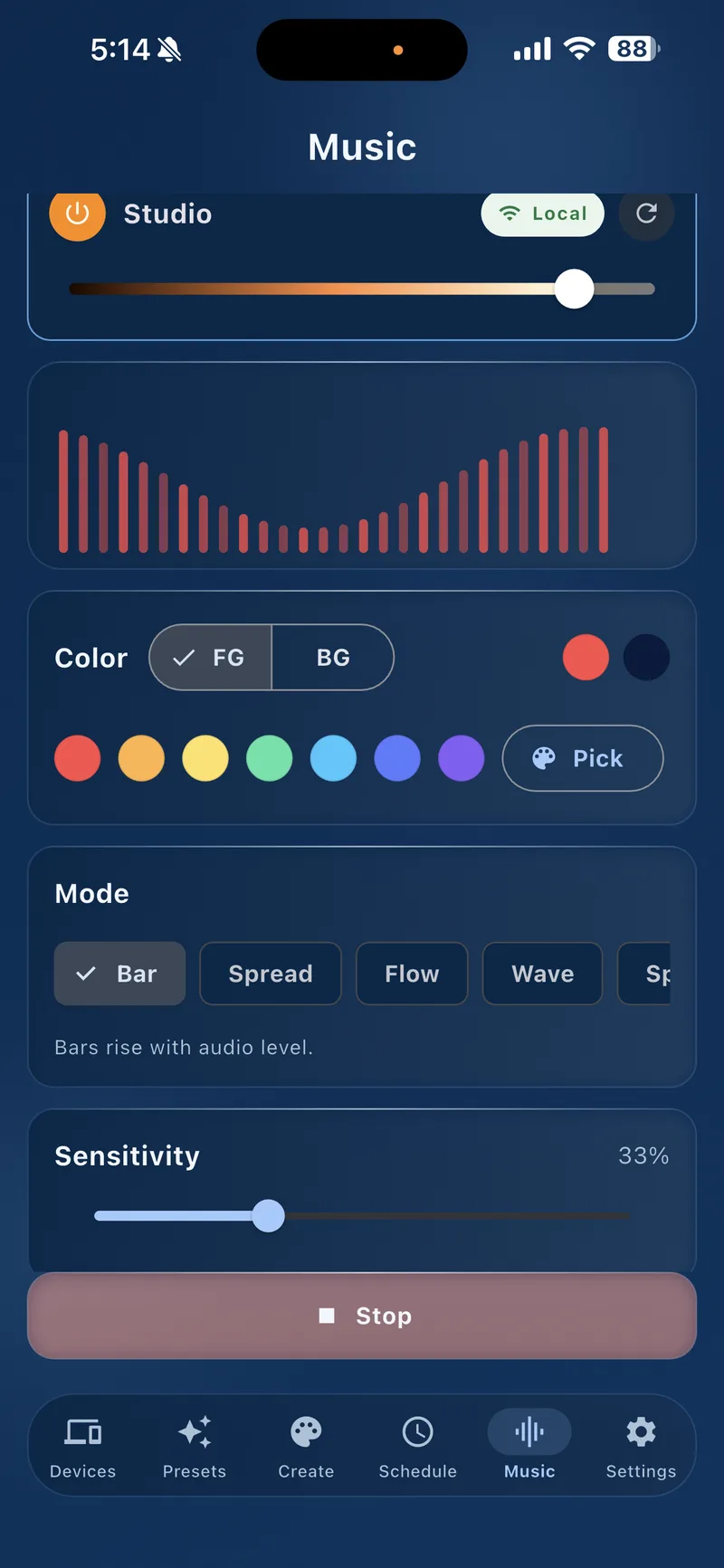
1 Audio Visualizer
The live bar graph shows the frequency spectrum of the audio being detected by your device’s microphone.
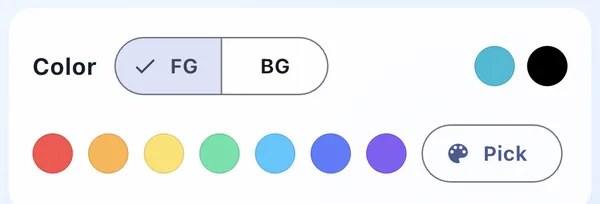
2 Foreground & Background Colors
Set separate colors for the FG (active/peak) and BG (background) of the visualization. Pick from presets or use the custom color picker.
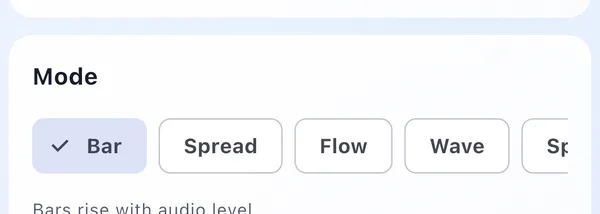
3 Visualization Modes
Choose from Bar, Spread, Flow, Wave, and more. Each mode creates a different visual pattern that reacts to the music.
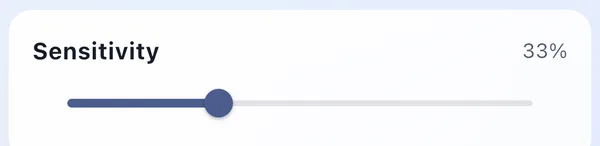
4 Sensitivity
Adjust the microphone sensitivity slider. Lower values require louder audio; higher values react to quieter sounds.
5 Start / Stop
Tap Start to begin the music-reactive mode. The button changes to Stop while active. Your lights update in real-time.
Integrations
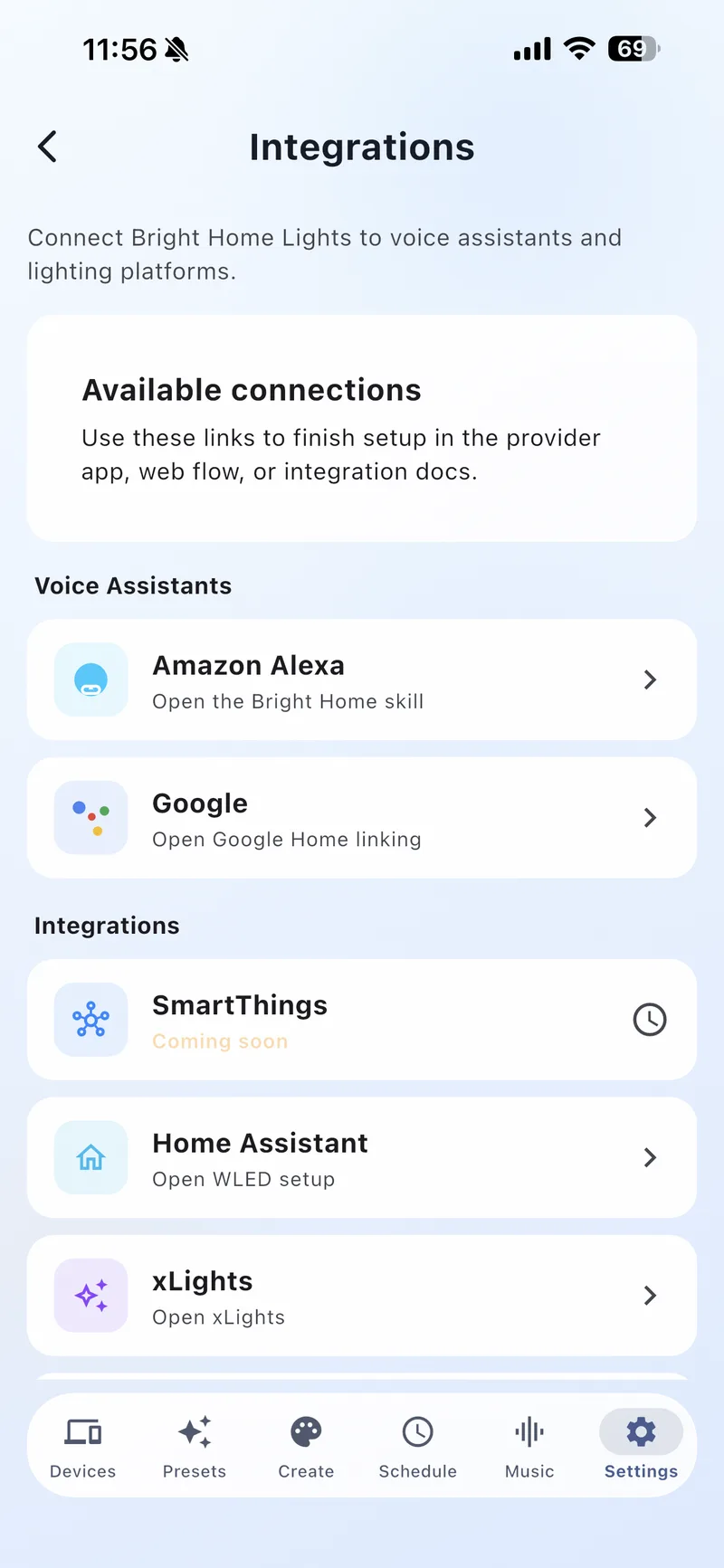
Connect Bright Home Lights to your favorite smart home platforms and voice assistants.
1 Amazon Alexa
Link your devices to the Bright Home Alexa skill. Control your lights with voice commands like “Alexa, set patio lights to red.”
2 Google Home
Connect through Google Home linking to control your lights with Google Assistant on any speaker or display.
3 Home Assistant
Use the native WLED integration in Home Assistant for advanced automations and dashboard controls.
4 xLights & LedFx
Connect to xLights for professional light shows and LedFx for advanced audio-reactive effects on your PC.
Account & Cloud
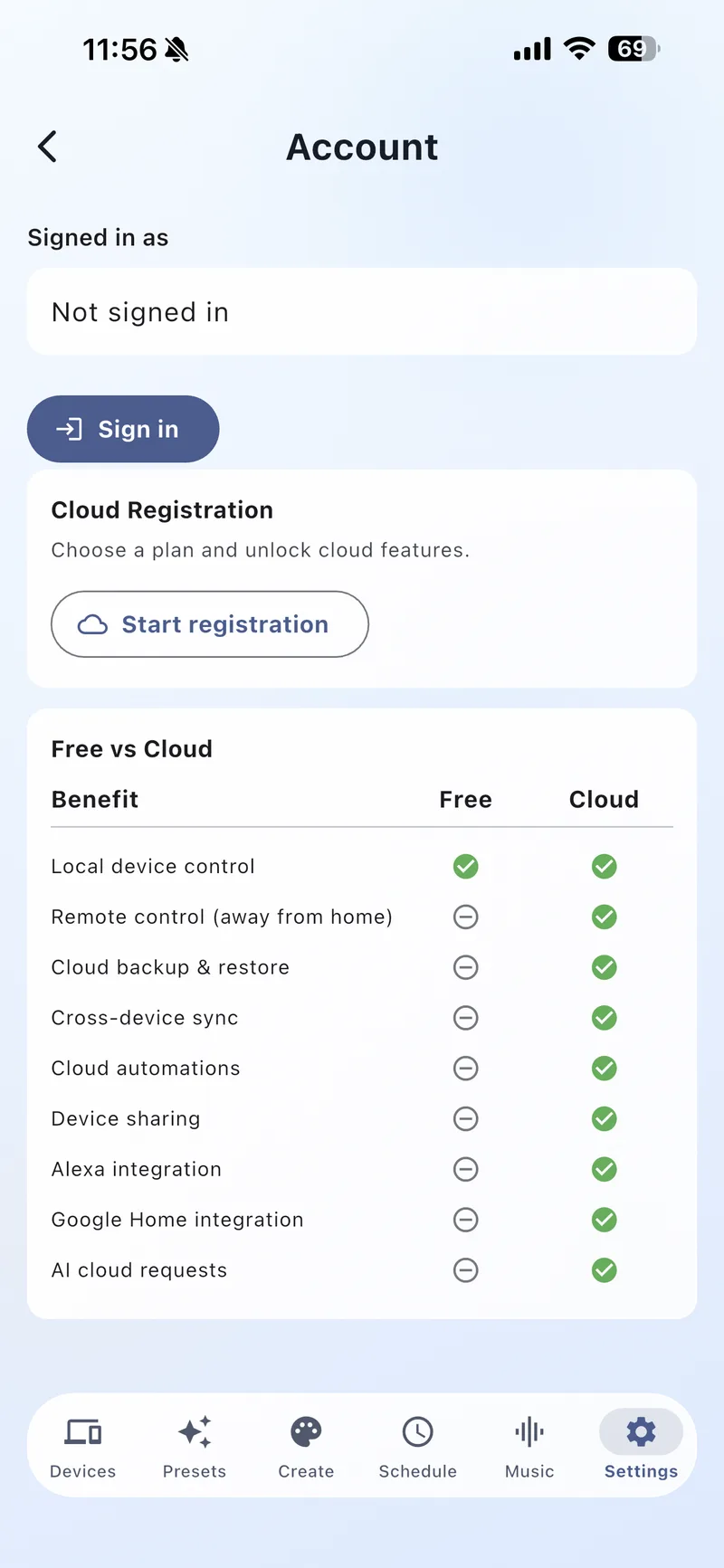
Unlock remote access, cloud backup, device sharing, and voice assistant support with a Cloud subscription.
1 Sign In
Create an account or sign in to access your Cloud features. Your account syncs across all your devices.
2 Cloud Registration
Choose a plan to unlock premium features. Tap Start registration to view available plans.
3 Free vs Cloud
The comparison table shows exactly what’s included. Free users get full local control; Cloud adds remote access, backup, sharing, voice assistants, and AI features.
Cloud Benefits Include:
Remote control from anywhere • Cloud backup & restore • Cross-device sync • Cloud automations • Device sharing • Alexa & Google Home • AI cloud requests
Themes
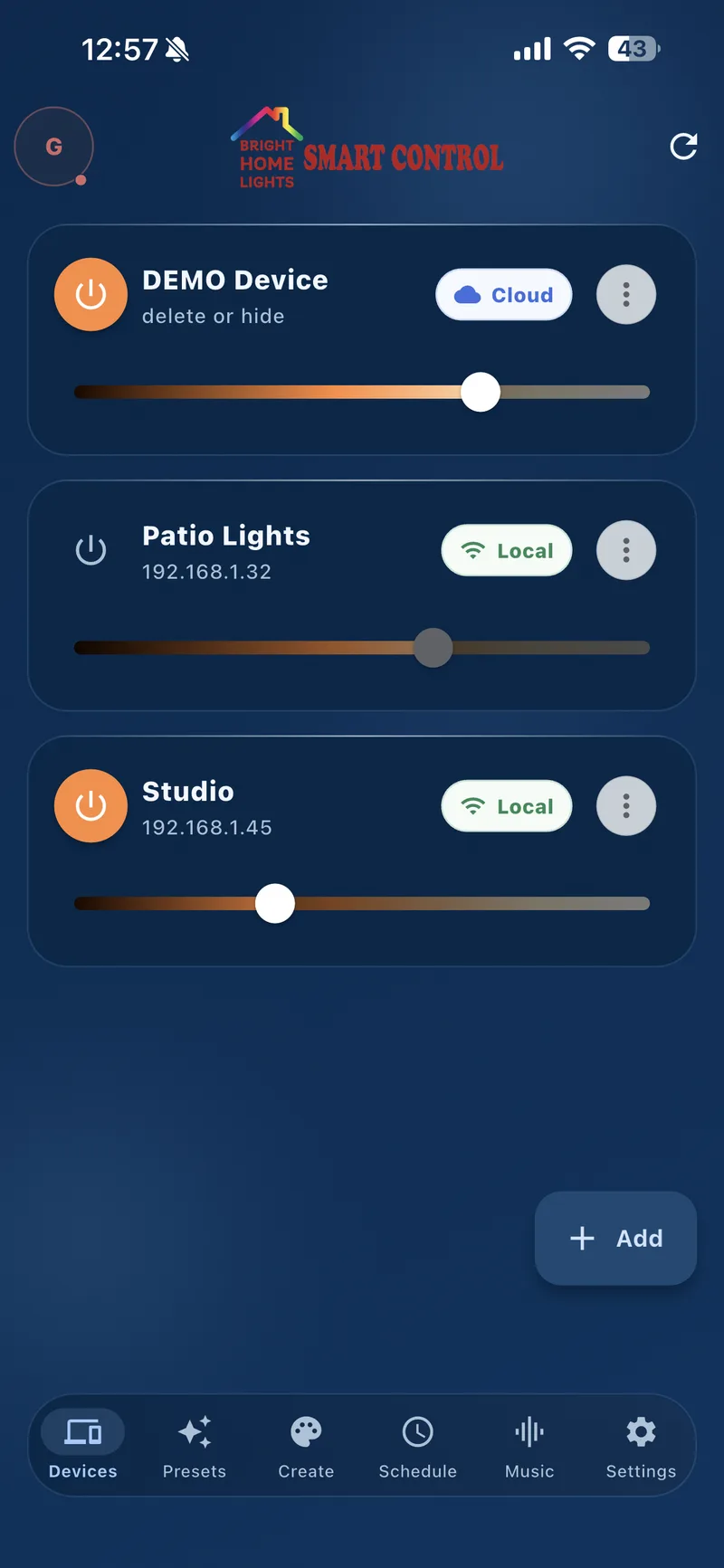
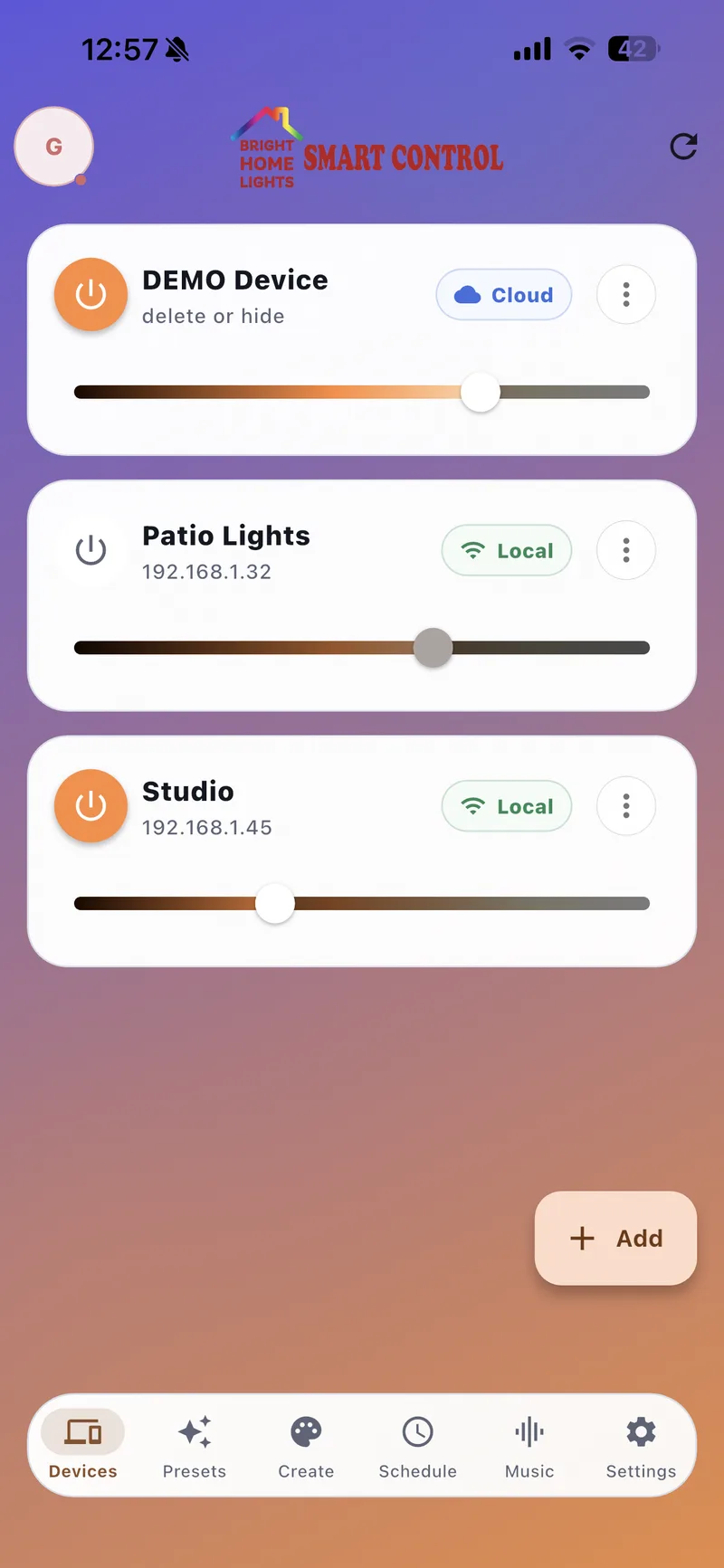
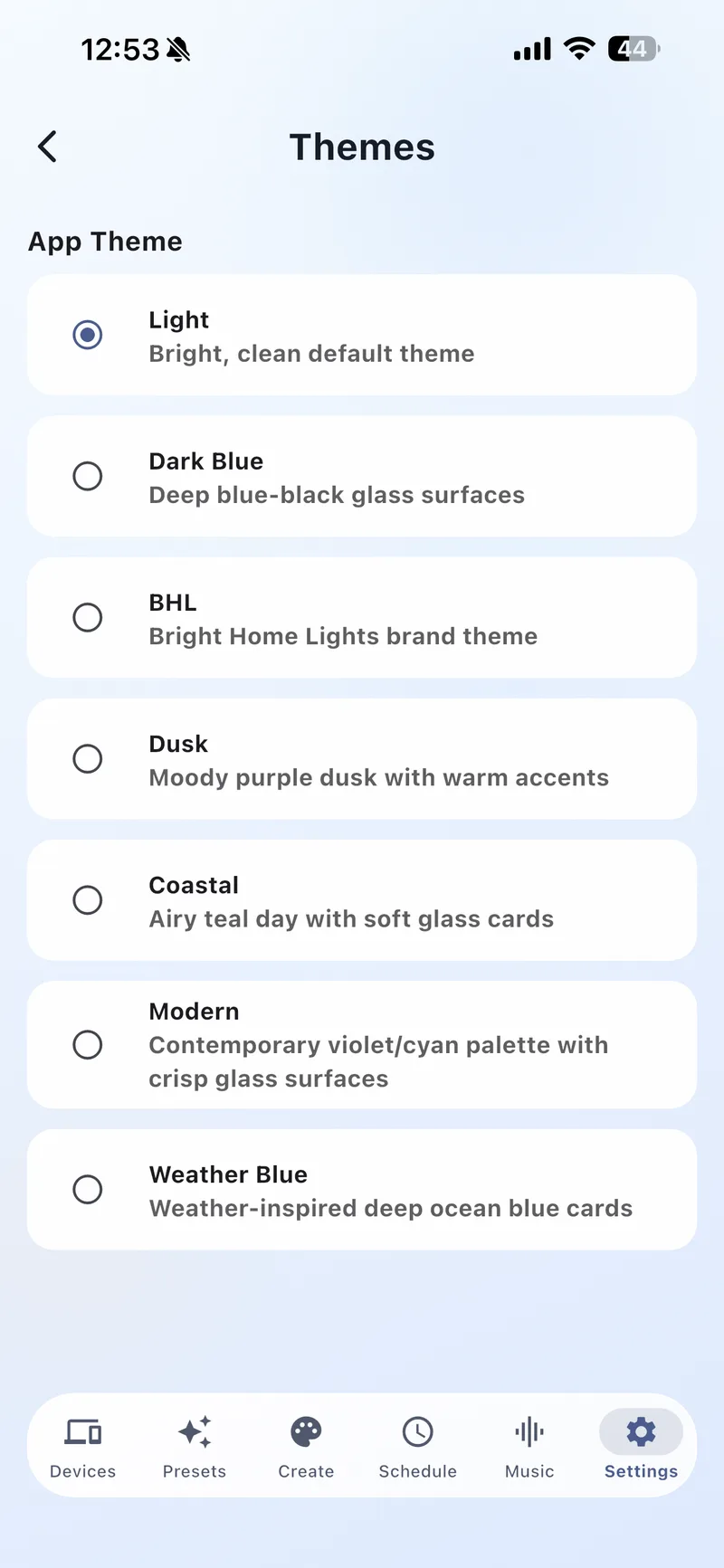
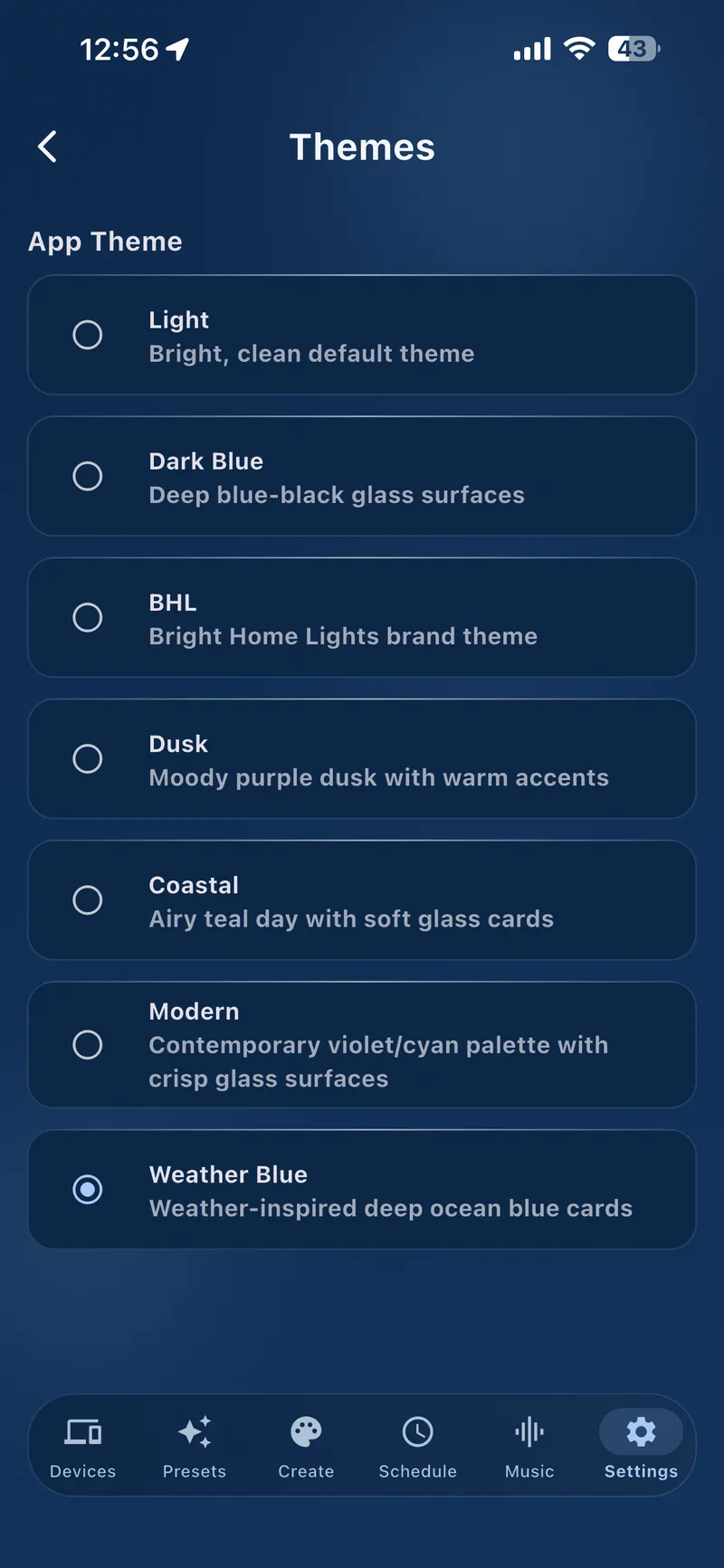
Personalize the app’s look with 7 beautiful themes. From bright and clean to dark and moody.
Available Themes
Light — Bright, clean default • Dark Blue — Deep blue-black glass • BHL — Brand gradient with warm accents • Dusk — Moody purple dusk • Coastal — Airy teal day • Modern — Violet/cyan palette • Weather Blue — Deep ocean blue
Backup & Restore
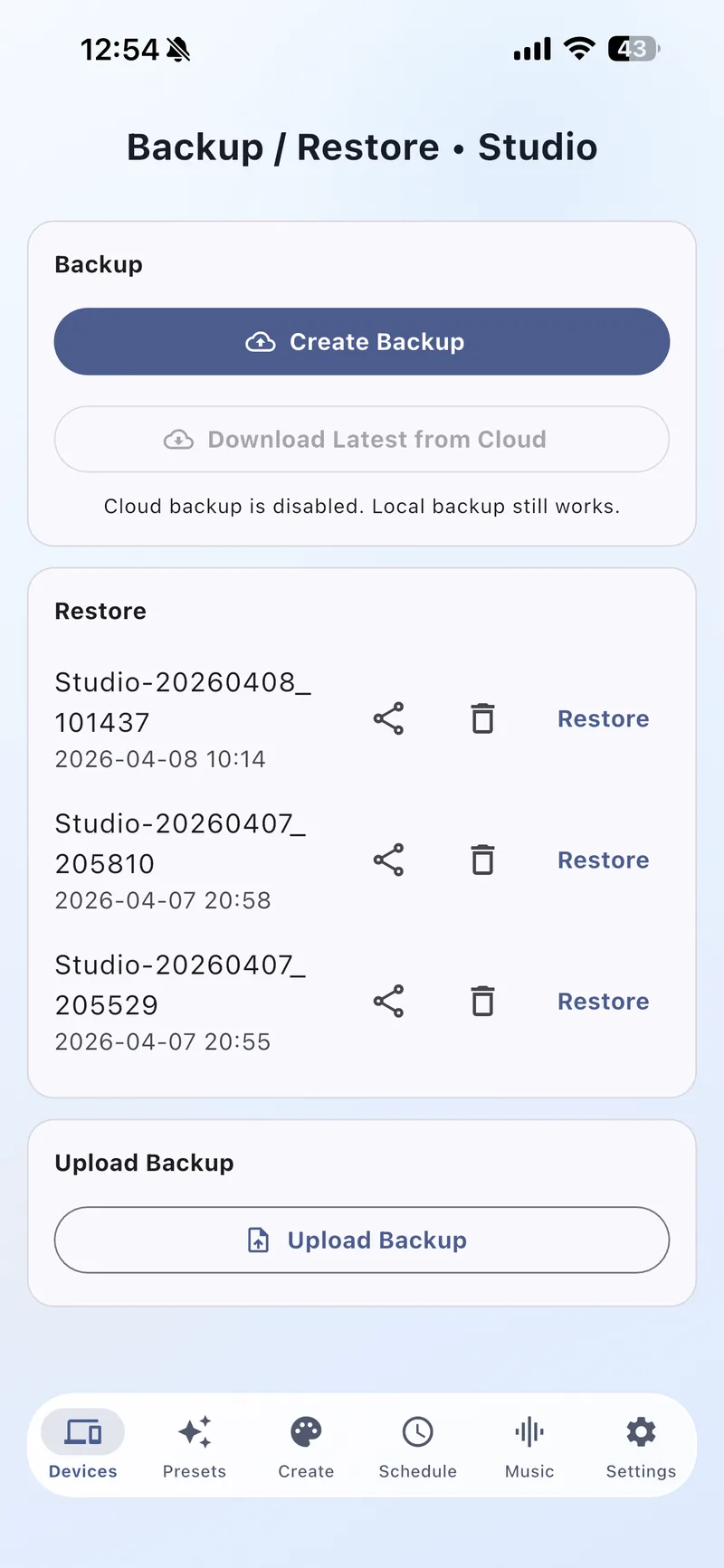
Never lose your device configurations. Create backups locally or in the cloud and restore them anytime.
1 Create Backup
Tap Create Backup to save your current device configuration including all presets, segments, and settings.
2 Cloud Backup
With a Cloud subscription, backups are stored in the cloud. Tap Download Latest from Cloud to retrieve them on any device.
3 Restore
Your backup history shows timestamped entries. Tap Restore on any backup to restore that configuration to your device.
4 Share & Upload
Share backups with other users or upload a backup file received from someone else to apply their configuration.
Device Sharing
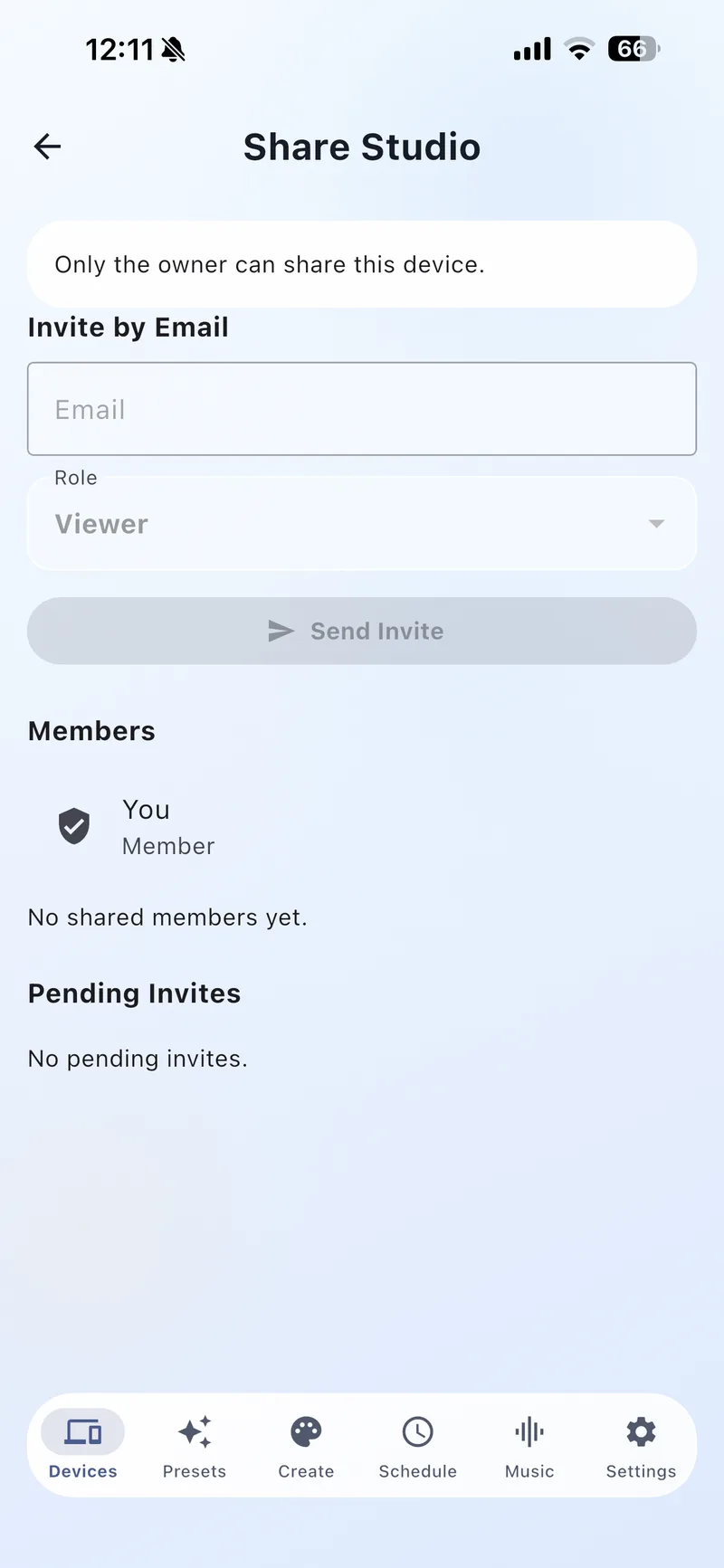
Share access to your lights with family members. Control who can view or manage each device.
1 Invite by Email
Enter the email address of the person you want to share with. They’ll receive an invitation to access your device.
2 Role Selection
Choose a role for the invited member: Viewer (can see, cannot change) or Member (can control the device).
3 Members List
View all members who have access to this device. The owner has full control including the ability to manage members.
4 Pending Invites
Track invitations that haven’t been accepted yet. You can cancel pending invites at any time.
Home Widgets
Add quick-access controls to your phone’s home screen. Toggle lights and apply presets without opening the app.
1 Widget Setup
Long-press your home screen and add the Bright Home Lights widget. Configure which device and action to control from the widget settings.
2 Quick Toggle
One tap from your home screen to turn lights on or off. No need to open the full app for simple controls.
3 Preset Shortcuts
Configure widgets to apply specific presets instantly. Create a “Movie Night” widget, a “Party Mode” widget, or any custom look.
Settings Menu
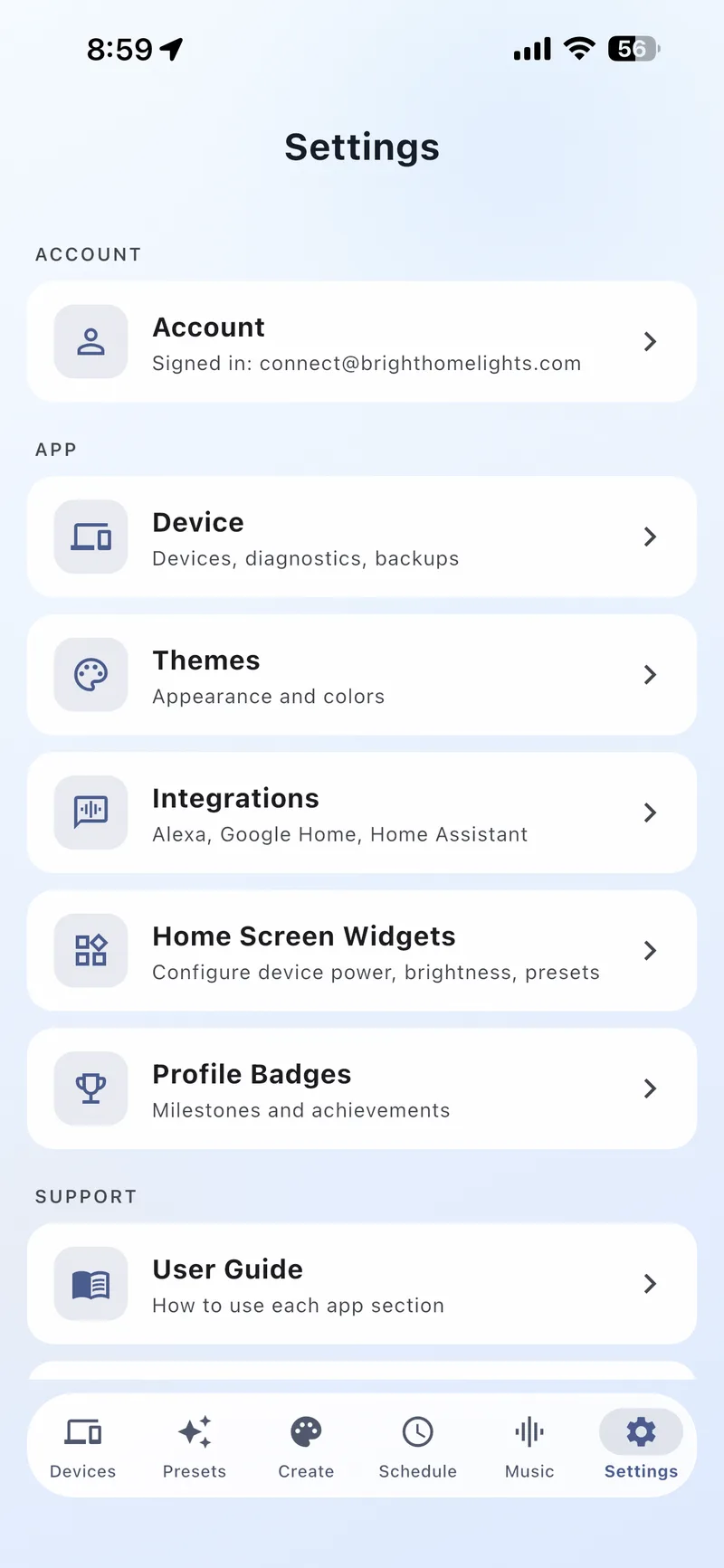
Access all app configuration, account management, and help resources from the Settings tab.
1 Account
Sign in, manage your Cloud subscription, and view the Free vs Cloud comparison. See the Account & Cloud section for details.
2 Themes
Choose from 7 app themes to personalize the look. See the Themes section for the full gallery.
3 Integrations
Connect to Alexa, Google Home, Home Assistant, xLights, and LedFx. See Integrations for setup.

4 Smart Assistant
Configure AI features and manage AI cloud request settings for color theme generation.
5 Widgets
Set up iOS and Android home screen widgets for quick light control. See Home Widgets above.

6 Profile Badges
View your achievement badges earned by using different app features. A fun way to track your progress as you explore the app.
7 User Guide & About
Access the in-app help documentation, interactive tutorial, version info, and legal links (Terms of Service, Privacy Policy).